
User Access & Permissions
Adding Users
Admins can add users and manage their permissions from the User Management page. Select the "+ Add User" button in the bottom left corner to get started.

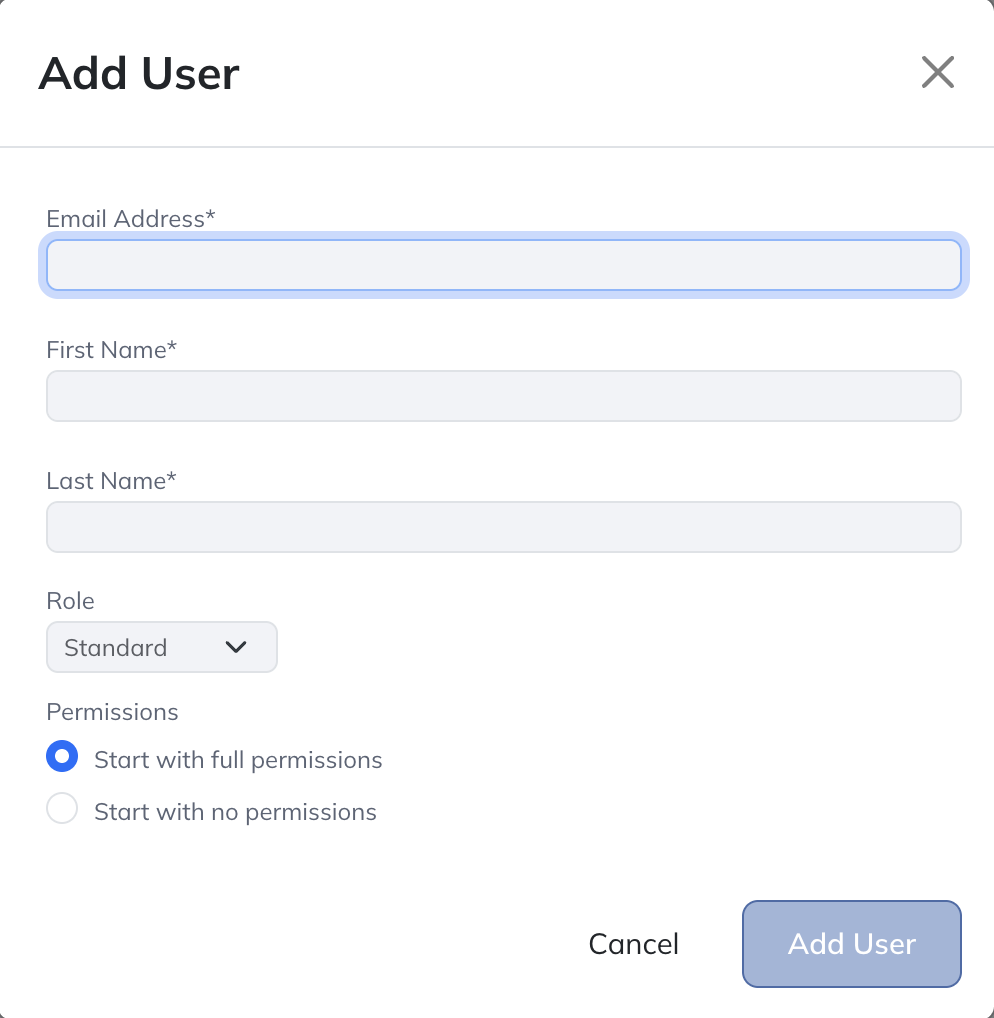
The Add User menu asks for the user's email address, first name, last name, role, and starting permissions.
Within a financial modeling instance, the role you can assign to other users depends on their account type and status:
- Users with an active financial modeling account can be assigned any role.
- FP&A users invited to a financial modeling instance are locked at View Only, regardless of how they're invited.
- Financial modeling users whose account is not active or on trial are also locked at View Only until they reactivate.
In short: Only users with an active financial modeling user account can edit a financial modeling company instance. Other users can be added as View Only.
There are four Roles to choose from inside the Add User menu:
- Standard: Standard users do not have administrative privileges. Their access is controlled by an Admin (either a Modeloptic admin or a customer admin). They cannot access the User Management or User Activity pages.
- Admin: Admins can manage user permissions, access the User Management and User Activity pages, and have full access to all global Tables and all entities in a multi-entity instance. Admins cannot modify Super-Admin accounts.
- Super-Admin: Super-Admins have unrestricted access to all features and administrative tools, including the ability to modify Admins. Like Admins, Super-Admins have access to all global Tables (and entities in a multi-entity instance) and can access both the User Management and User Activity pages.
- View Only: View Only users cannot edit anything in the app. Forms are locked across the Configuration, Model, Historical Data, Transactions, DCF, Reports, Dashboard, and Variance Analysis pages. They can still be granted view access to Company Configuration, Reporting, Model, Historical Data, Historical Transactions, and individual Global Tables & Views. View Only users have no access to the Modeloptic AI Agent. On multi-entity instances, view permissions can be configured per entity. Use this role for stakeholders who should see the model but not change it.
Selecting the View Only role reveals its view-permission options:
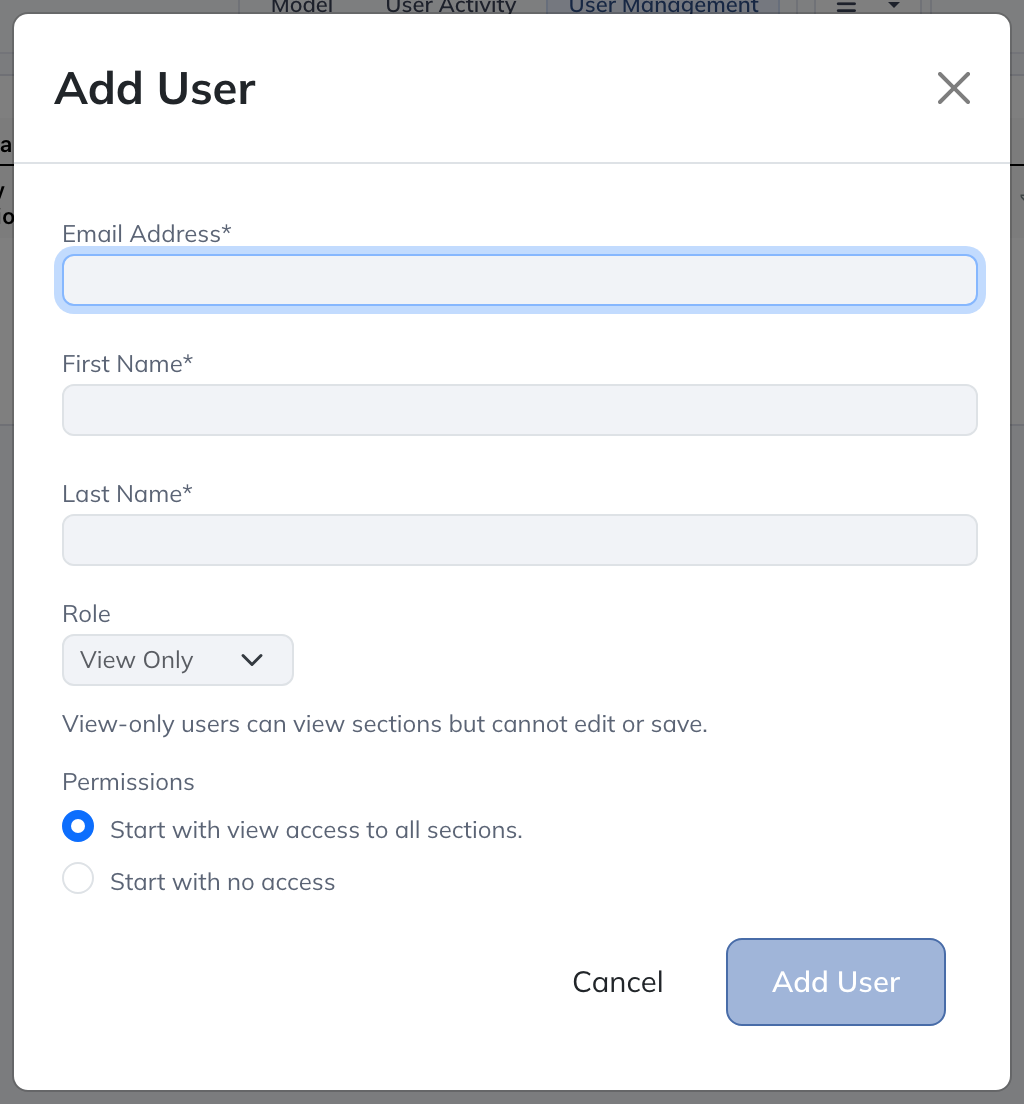
There are two starting permission options:
- Start with Full Permissions: The user starts with access to all standard permissions, Reporting, Model, and all Global Tables & Views.
- Start with No Permissions: The user starts without access to standard permissions, Reporting, Model, or Global Tables & Views.
Once you enter a user's name, email, and permissions selections, select the "Add User" button at the bottom right of the Add User menu and they will be sent an email prompting them to set up their password.
User Permissions
Modeloptic permissions control which areas a user can see or edit:
- Accounting Connection ONLY: User can view and edit the Accounting Connection section of the Historical Data tab. If selected, this option will hide all other tabs and pages from the user's navigation.
- Company Configuration: User can view and edit options on the Configuration tab, including changing start and end years and editing the company's chart of accounts within Modeloptic.
- Historical Data Connections: User can view and edit options on the Historical Data tab, including changing the last historical period, triggering historical data refreshes, and editing schema mappings.
- Historical Transactions: User can view historical transaction detail (if the company is connected to an accounting system).
- Reporting (View): User has read-only access to the Dashboard, Reports, and Variance Analysis pages.
- Reporting (View & Edit): User has edit access to the Dashboard, Reports, and Variance Analysis pages.
- Model (View): User has read-only access to the Model tab and can generate fully-functional models in Excel.
- Model (View & Edit): User has edit access to the Model tab, can generate fully-functional models in Excel, and has edit access to the Projection Sets tab.
- Global Tables & Views: If selected, the user has edit access to the corresponding Global Table or global View.
If a user does not have permission to access a particular Global Table or View, it will not appear in their navigation menu on the Model tab. If a user does have access to a Table that includes a link to another Table they do not have access to, the linked line will still be visible but the name of the target Table will be redacted.
Logic Rows that are displayed only in restricted Views are treated as restricted as well: they are hidden from Logic Rows and from formula link pickers, and their labels are redacted anywhere a reference to them is visible. A Logic Row that also appears in a View the user does have access to is not restricted at all: it remains fully visible everywhere, including in Logic Rows and formula link pickers.
This same behavior applies to the Reporting pages. Users cannot create new links to Tables they do not have access to, and any existing links to restricted Tables will be visible with the Table name replaced by [Restricted].
Firm membership, account entitlement, company role, and entity permissions are separate. Joining a firm provides its shared allowance, but does not grant access to each company. Company admins grant that access through User Management. Model → View & Edit and Reporting → View & Edit govern the corresponding editing workflows; an account restriction or View Only role can still prevent editing.
Additional User Options
After creating a user account and setting permissions, you can adjust Additional User Options from the dropdown next to the user on the User Management page:
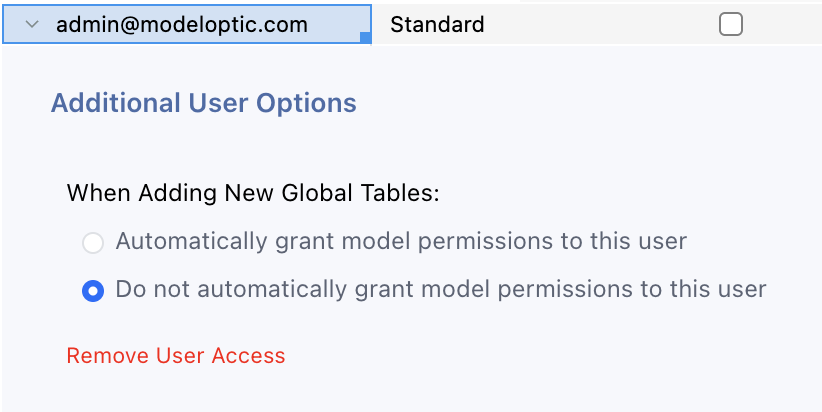
This menu lets you choose whether the user should automatically receive access to new Global Tables & Views created in the instance. In a multi-entity instance, this is also where you can remove the user's access to a specific entity.
Multi-Entity User Permissions
There are additional aspects to consider when configuring access inside a multi-entity instance of Modeloptic. The User Management page will look something like this in a multi-entity instance:
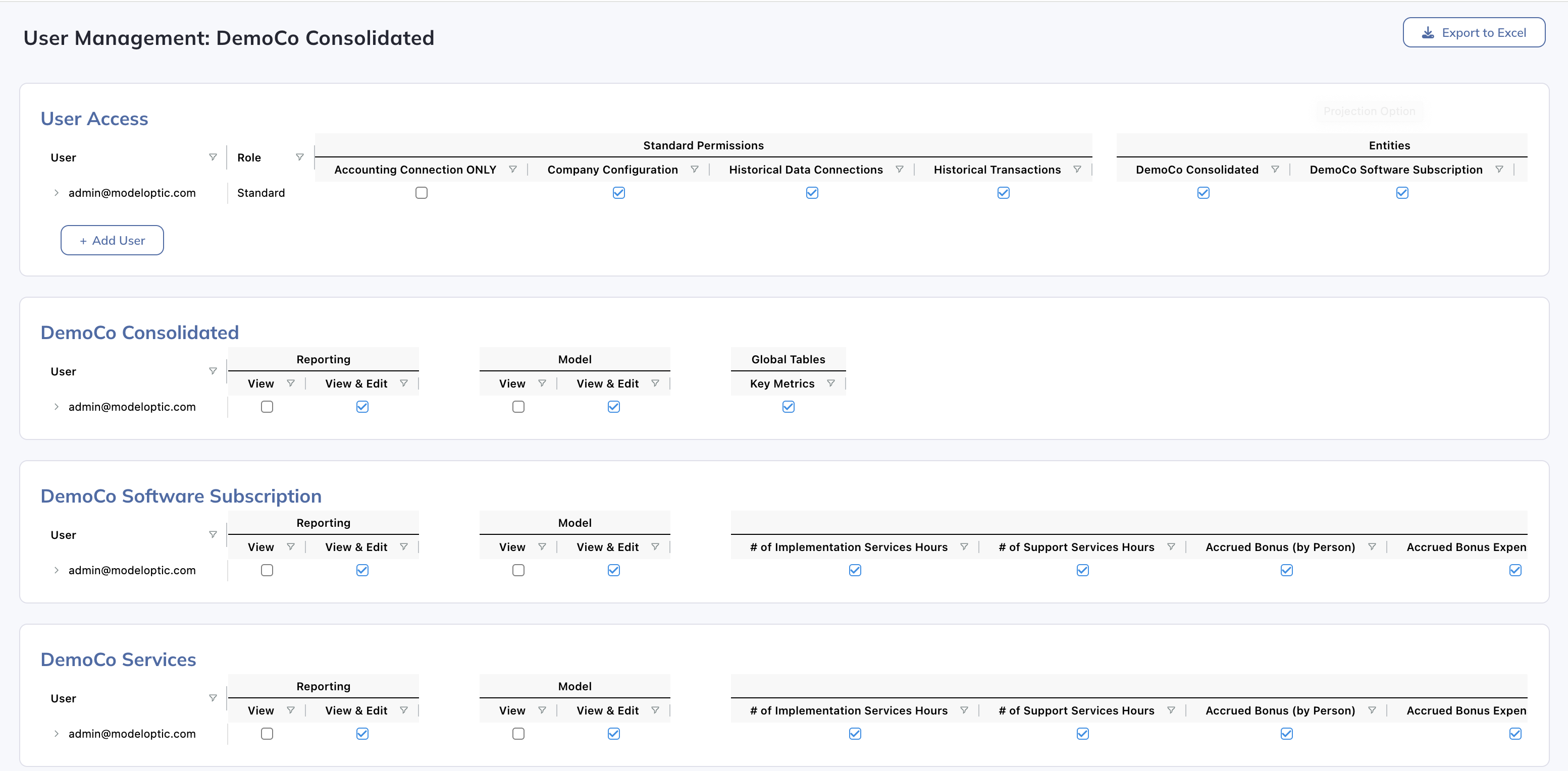
You can add users the same way as you would in a single-entity instance, using the "+ Add User" button underneath the top User Access menu.
If you select "Start with Full Permissions," the user is added to all available entities with full access to all pages and Global Tables & Views. If you select "Start with No Permissions," you'll need to manually add the user to each entity and configure their access. This setting can be updated under Additional User Options for each user at the instance level:
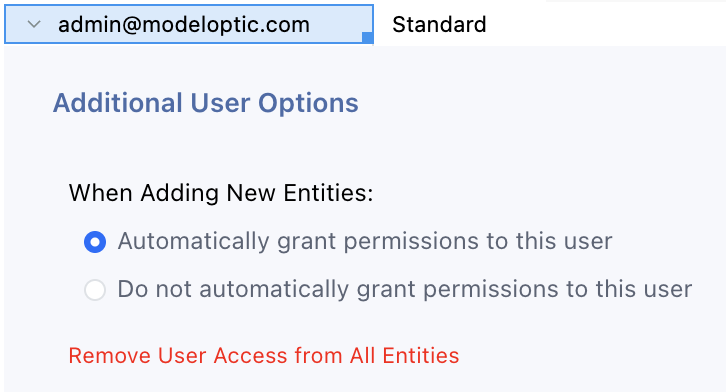
You can also remove the user's access from all entities using the red link at the bottom of this menu.
Permissions at the individual entity level work similarly to permissions in a single-entity instance. See the User Permissions section above for a detailed explanation of the options available in each entity.
Additional User Options are also available in each child entity, where you can control automatic access to new Global Tables & Views for that entity or remove the user's access from that entity.
Note that if a user does not have access to an entity, that user will not be able to create links to anything contained in that entity. If the user has access to a Table that contains a link to a restricted entity, the link will still be visible, but the line label will be redacted.
Additional Considerations
There are several additional considerations to keep in mind when restricting user access within your instance of Modeloptic:
- In a multi-entity structure, if you restrict access to a child entity but not that child's parent entity, the user will still be able to see the child entity's financials through the parent.
- If you restrict access to certain Tables or entities, but other Tables that you don't restrict (including the financials) have links to the ones you've restricted, the user will still be able to see the values returned by those links (though the line labels will be redacted).
- In a multi-entity structure, if you restrict access to a specific entity, the user will not see non-financial data connections for that entity on the Historical Data tab. If you have an Accounting Connection for only that restricted entity, the user will not see that Accounting Connection. However, if you are using the "Org Structure Breakdown" option and it's set to anything other than "Consolidated (No Breakdown)", the only way to restrict access to the Accounting Connection is to restrict access to the entire Historical Data tab.
- On the Historical Data tab, access to multi-table data connections is determined by the Target Global Table (i.e. the parent Table). If the user has access to that Table, they'll have access to the entire data connection, even if they have restricted access to child Tables.
- There is no practical way to restrict a user's access to transaction-level detail pulled from your accounting system on a per-account basis. If you have sensitivity around showing transaction-level detail to a user in any form, restrict their access to transaction-level detail entirely.
- A Logic Row is only restricted while every View it appears in is restricted. A row with no View placements is never restricted, so removing a row from its only restricted View (or deleting that View) makes the row visible to everyone with Model access through Logic Rows.