
Corporate Transactions
Overview
Modeloptic has specialized, built-in support for forecasting Corporate Transactions of various kinds, primarily mergers and acquisitions (M&A) and capital raises (debt, equity, and hybrid).
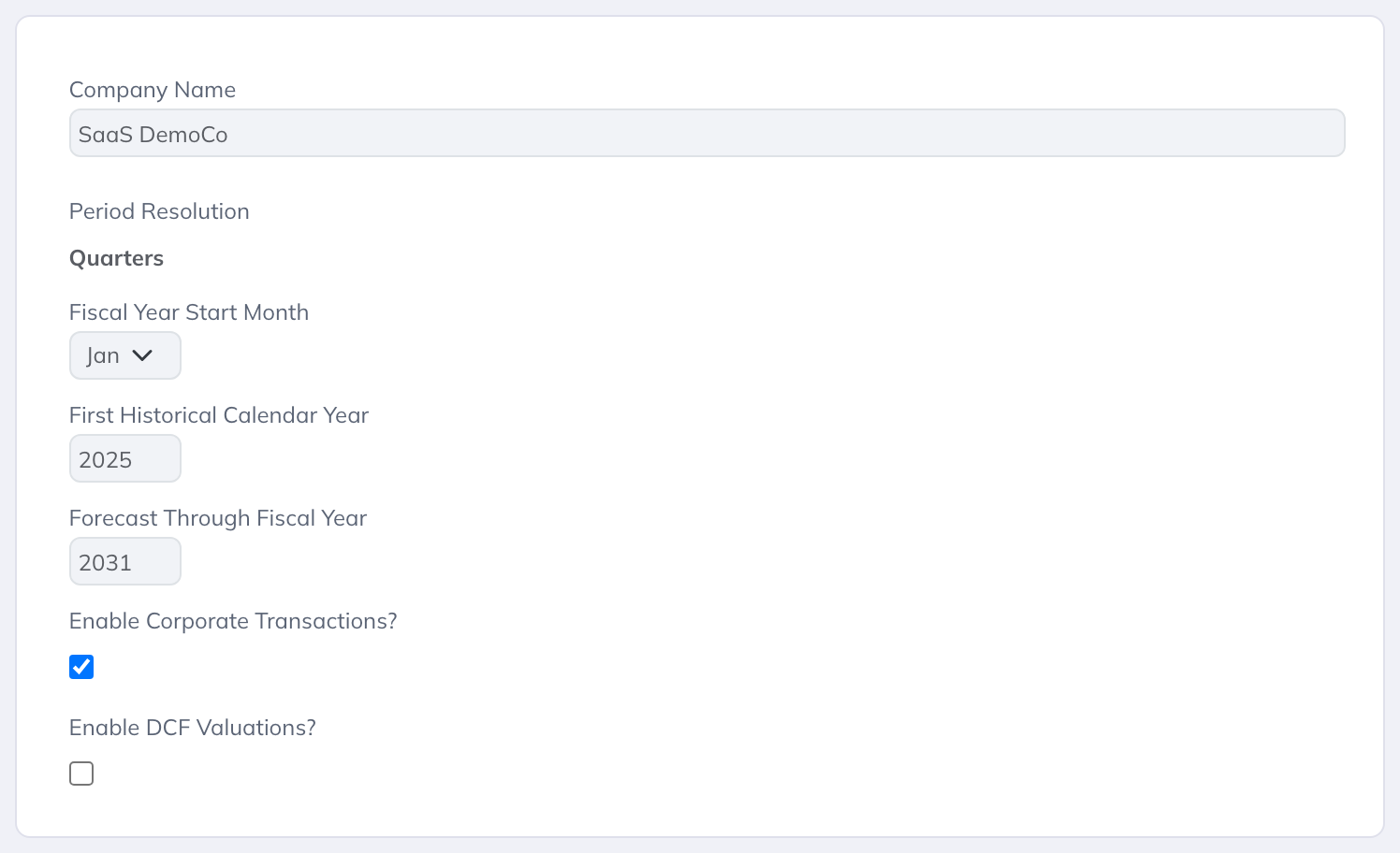
To add Transaction capability to your instance, go to the Company Configuration page and check the box for "Enable Corporate Transactions?". After saving, a new "Transaction" link will appear in the header.

Corporate Transactions can be edited by admins and by users with Model → View & Edit permission; other users with model access can view them.
Each transaction is attached to a Projection Set and models an event on that set's timeline. At the transaction period, the transaction's entry logic, sources & uses, and balance sheet adjustments are applied, and all later periods reflect the post-transaction state. To see the Projection Set without the deal, disable the transaction - the set then calculates as if the transaction weren't there, and you can re-enable it at any time. For a side-by-side deal/no-deal comparison, clone the Projection Set (the clone includes copies of its transactions) and disable or delete the transactions on the clone to make it your no-deal baseline.
A Projection Set can have multiple transactions, each applying at its own period. This lets you model a chain of events - for example an acquisition, a later refinancing, and an eventual exit - within a single Projection Set.
Key concepts:
- Host Projection Set - the Projection Set a transaction is attached to. Transaction formulas reference this set's model data, and the transaction's adjustments are applied to this set's forecast.
- Interim Period - the window from the first projection period through the latest enabled transaction period on the set, shown with an amber/orange background in Outputs. These are ordinary projection periods: they use the Projection Set's own forecast logic, and their inputs are editable like any other projection period. Periods after a transaction's period additionally reflect that transaction's adjustments.
A transaction is organized into several sections: Entry Logic, Exit Logic, Sources & Uses, Balance Sheet Adjustments, Outputs, and Returns. Each is covered below.
The enable checkbox is shown only for an AI-enabled company with the applicable account access. Configuration access is needed to change it. Company role, account entitlement, and Model permissions still determine who can view or edit the transaction.
Creating a Transaction
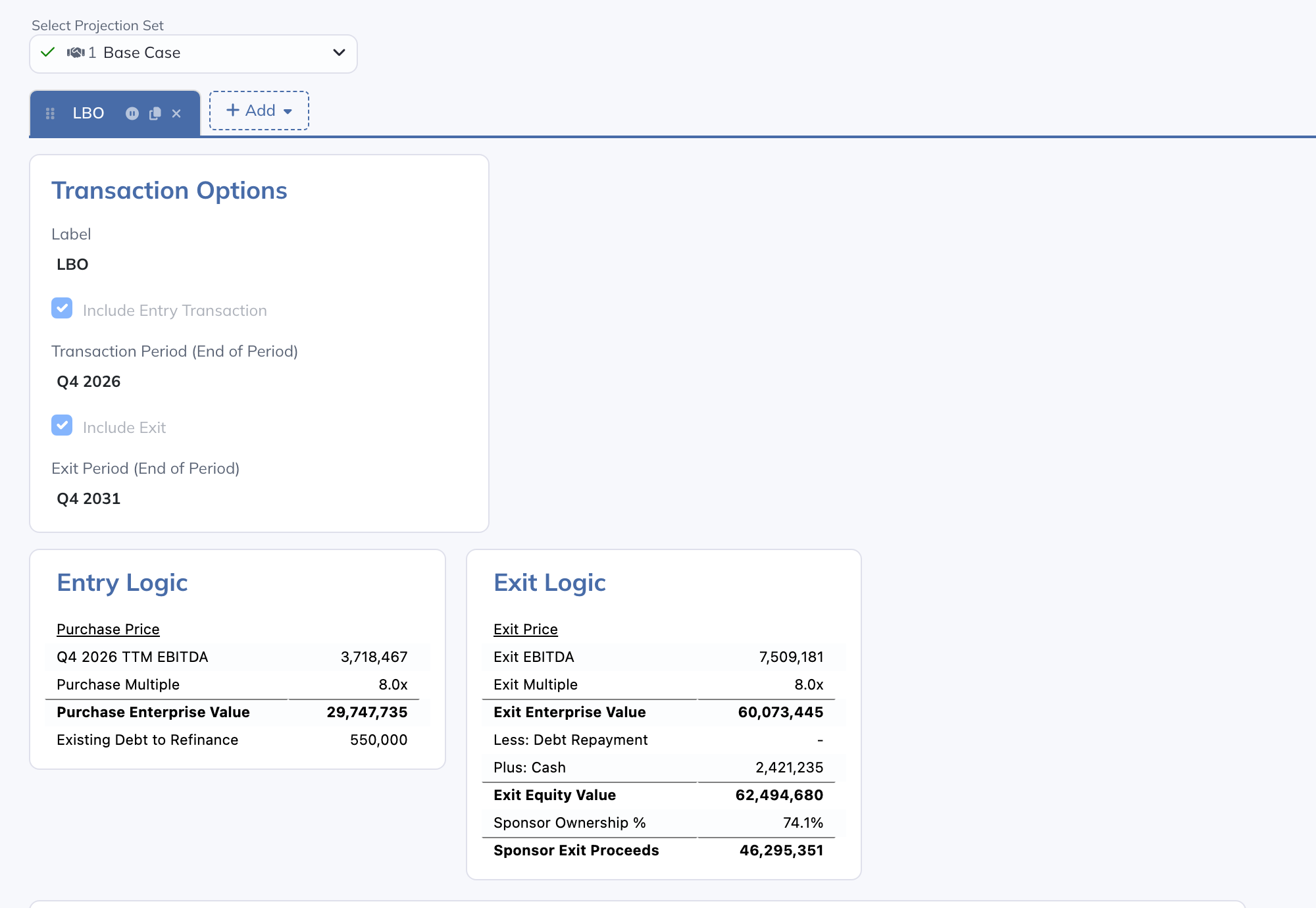
Use the Projection Set selector at the top of the Transaction page to choose which set to work with - the page always shows the selected set's transactions. Then click "Create Transaction" (or, once the set has transactions, the "+" Add button on the tab bar) to open a dropdown with preset options.
Preset options - choose from a blank transaction or from preset templates grouped by category (e.g. Financing, Acquisition). Presets pre-populate the transaction's sections with commonly-used structures and formulas so you don't have to start from scratch. You can then modify any of the pre-filled values.
Transactions can only be added to an unlocked, modeled Projection Set - flat-upload sets can't host transactions.
You can also clone an existing transaction using the copy icon on its tab.
Like other scenario-based features in Modeloptic, transaction tabs can be reordered by dragging them, and unneeded transactions can be deleted from their tab controls.
Enabling and disabling - each tab has a pause/play toggle. A disabled transaction keeps its full configuration but is skipped by calculation and Excel export, so you can switch an event in and out of a scenario without deleting it.
One transaction per entry period - two enabled transactions on the same Projection Set can't share an entry period. The period picker marks periods already in use by another enabled transaction, and a disabled transaction can't be re-enabled while its entry period conflicts with an enabled one.
Transaction Options
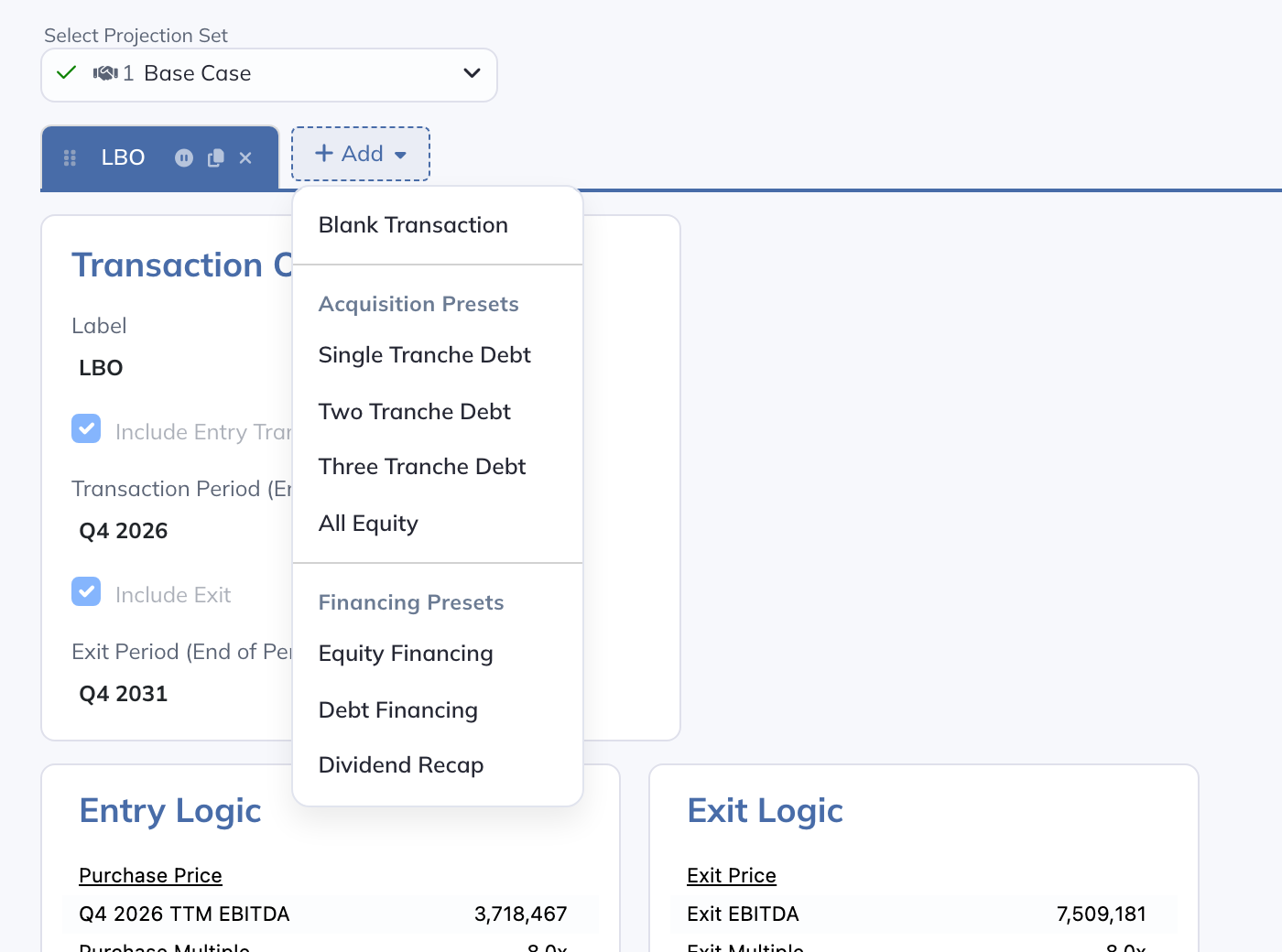
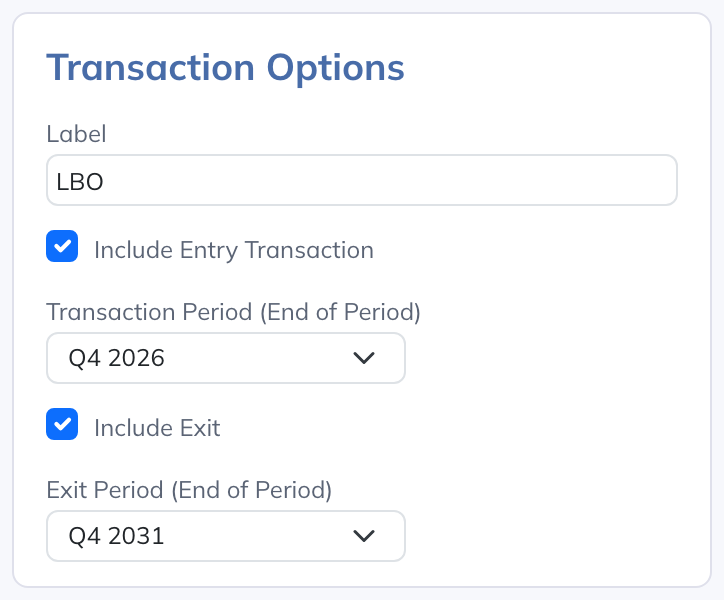
The Transaction Options card controls the core settings for each transaction:
- Label - the name of your transaction.
- Include Entry Transaction - check to enable the entry event section (e.g. acquisition date).
- Transaction Period (End of Period) - the period the entry event occurs. Options include the latest historical period and any projection period; periods already used by another enabled transaction on this Projection Set are shown disabled. Periods from the first projection period through this date are the "interim period" - ordinary pre-transaction projection periods that use the Projection Set's own forecast logic and remain editable. Periods after this date additionally reflect the transaction's adjustments.
- Include Exit - check to enable the exit event section (e.g. divestiture date). When first enabled, the exit period defaults to the final model period.
- Exit Period (End of Period) - the period the exit event occurs.
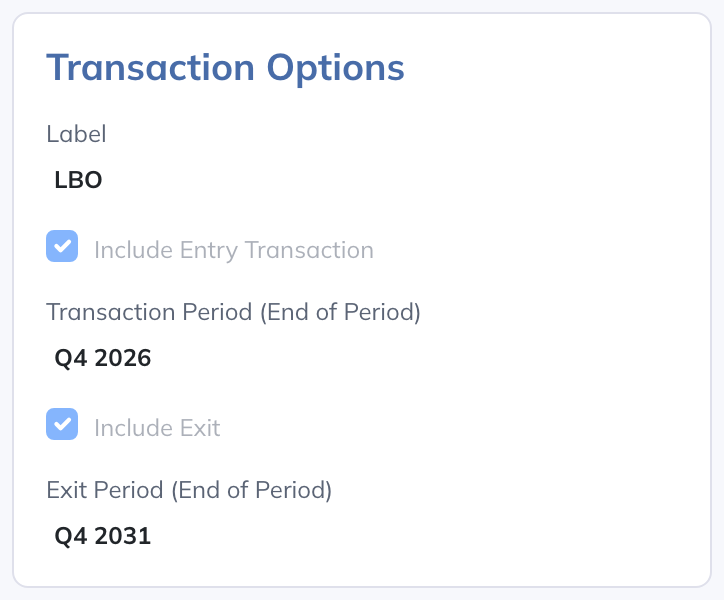
Edit / View Mode - use the toggle in the top right to switch between view mode and edit mode. If the host Projection Set is locked, the transaction remains read-only. In edit mode the label and period pickers become editable:
Entry Logic
Define the calculations that happen at the entry event - purchase price, enterprise value, entry multiple, and other one-time deal assumptions. Each row is a single value evaluated at the entry date.
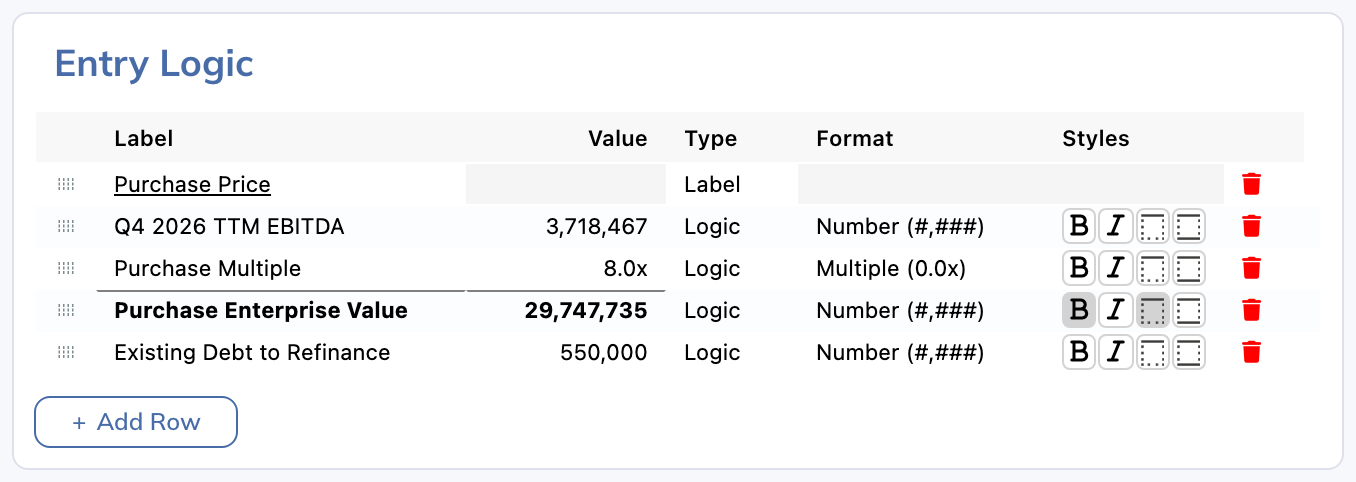
Row types:
- Logic - a calculated row with a formula.
- Label - a section header for visual grouping.
- Spacer - a visual separator between groups of rows.
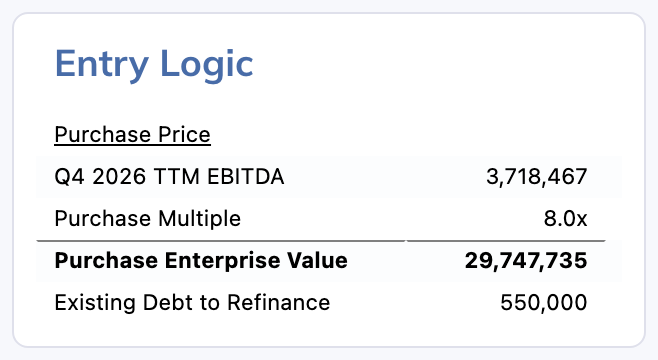
Add rows with the "Add Row" button or right-click to insert above/below. Click a formula cell to open the formula editor and link to model values, other entry rows, or system values.
Format and style rows with number formatting (dollar, percent, multiple) and visual styling (bold, borders).
Exit Logic
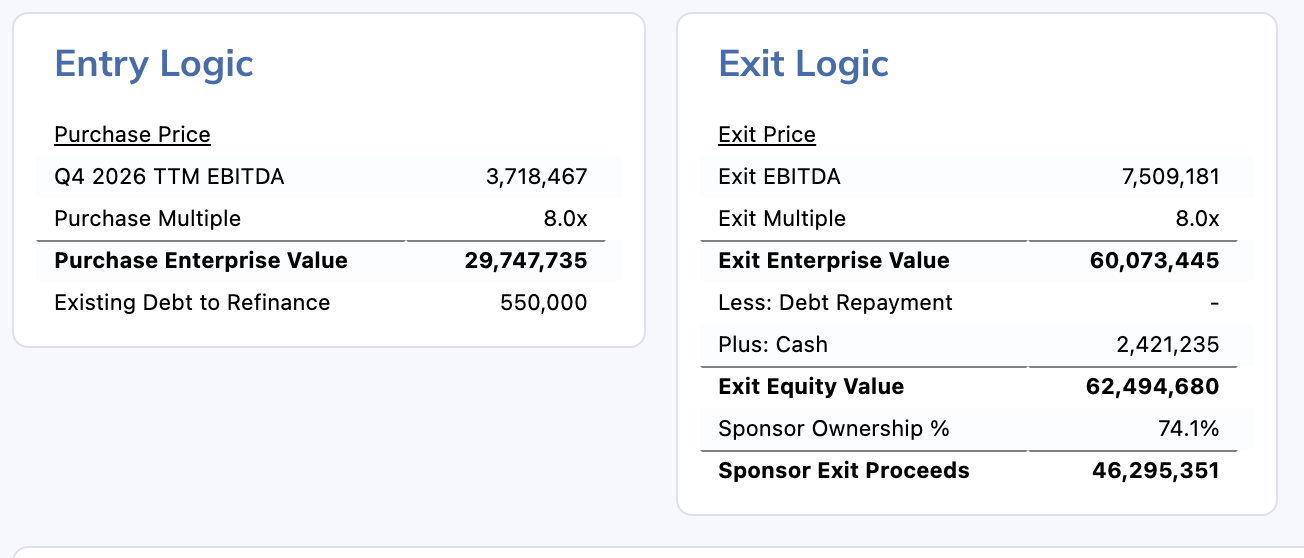
Exit Logic has the same structure as Entry Logic but is evaluated at the exit date. It only appears when "Include Exit" is checked in Transaction Options.
When first enabled, four default rows are auto-populated: Exit Price, Exit EBITDA, Exit Multiple, and Exit Enterprise Value.
Entry and Exit grids appear side by side.
Sources & Uses
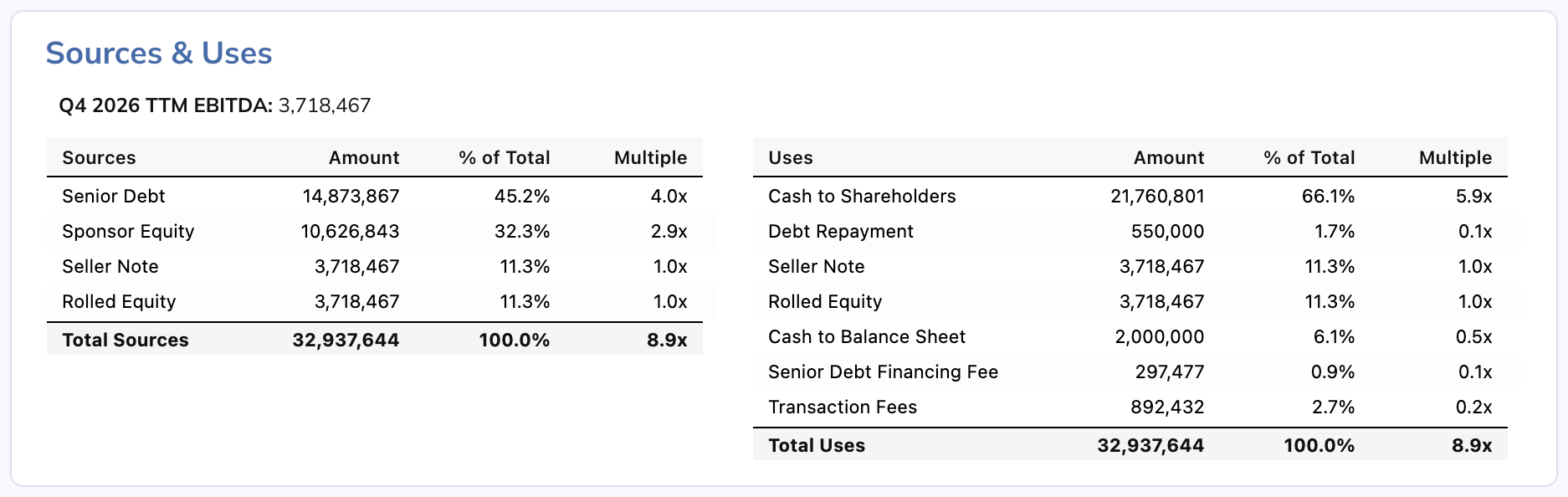
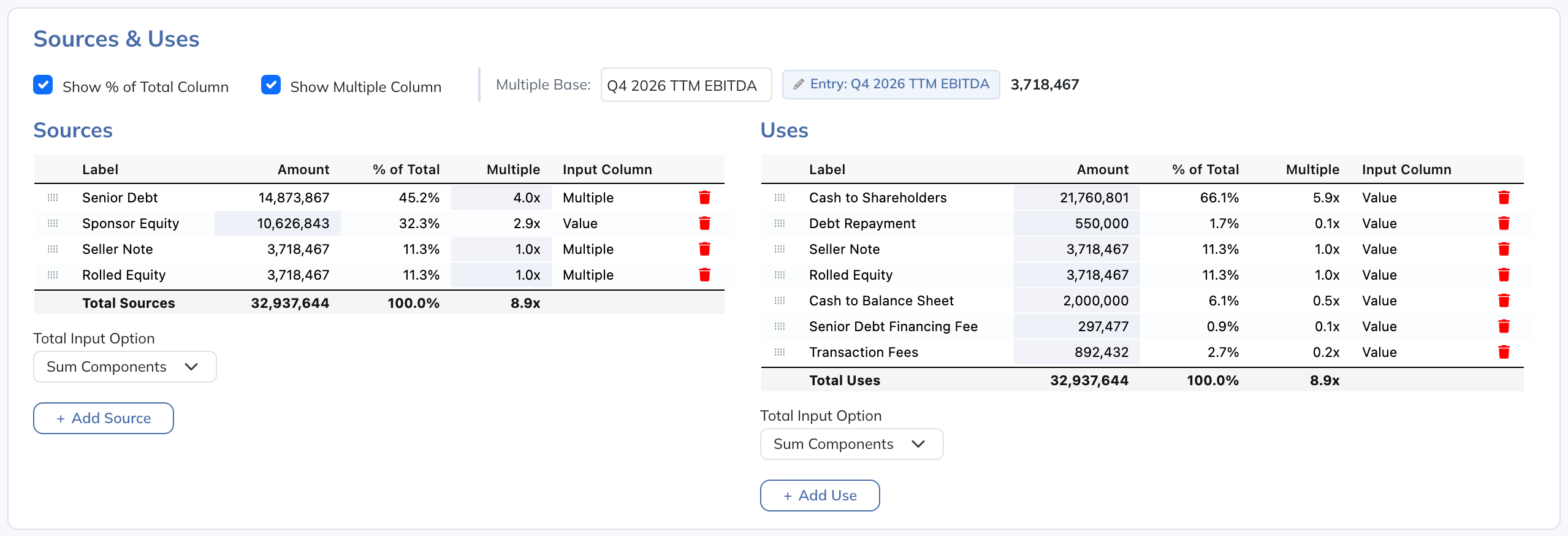
Sources describe where the funding comes from; Uses describe where it goes. Enable Show % of Total Column or Show Multiple Column when those views help explain the funding.
Set each row’s Input Column to choose whether Value, % of Total, or Multiple is entered. The other columns derive from it. When using multiples, set Multiple Base to the intended model value, such as EBITDA.
For each grid, Total Input Option determines whether the total is the sum of component values or a separately defined formula. Percentage inputs need the intended total; review the total option before entering the funding split. A red Out of balance indicator means Total Sources and Total Uses differ.
Balance Sheet Adjustments
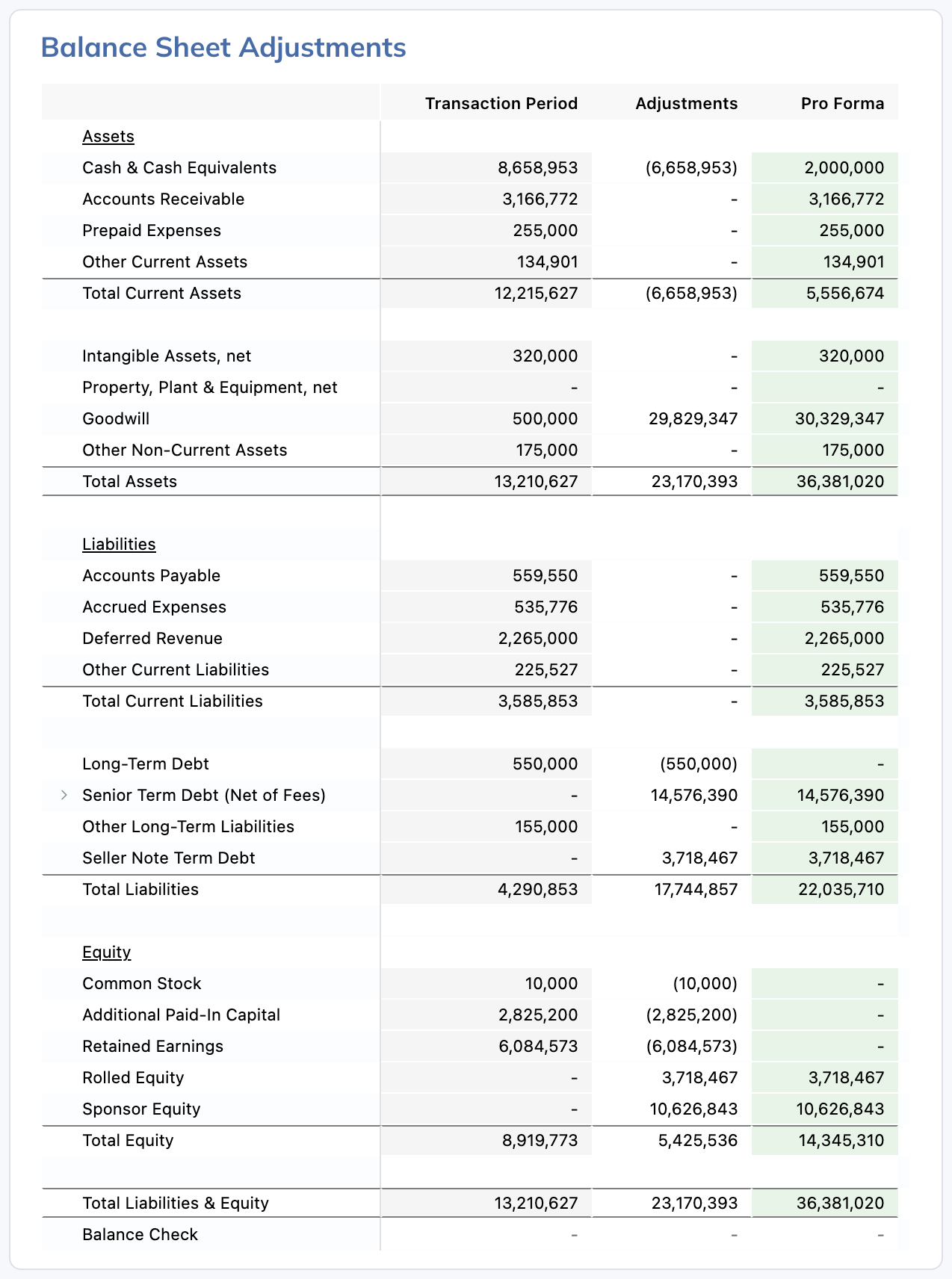
Model the balance sheet impact of the transaction at the entry date using a hierarchical tree grid matching your chart of accounts - expand and collapse account groups.
Add one or more "adjustment columns" (e.g. "Purchase Adjustments", "Goodwill") using "Add Adjustment Column" above the grid. Click cells to enter formulas for specific accounts - only accounts that need adjustments require values.
How adjustments are applied - at the transaction period, the model first calculates the balance sheet as of that period using the Projection Set's own forecast logic, then adds your adjustment columns to those balances. The result is the pro forma closing balance sheet for the transaction period. Every later period rolls forward from these adjusted balances, so the deal's balance sheet impact carries through the rest of the forecast - and through the Excel export - rather than appearing only at the transaction date.
Outputs
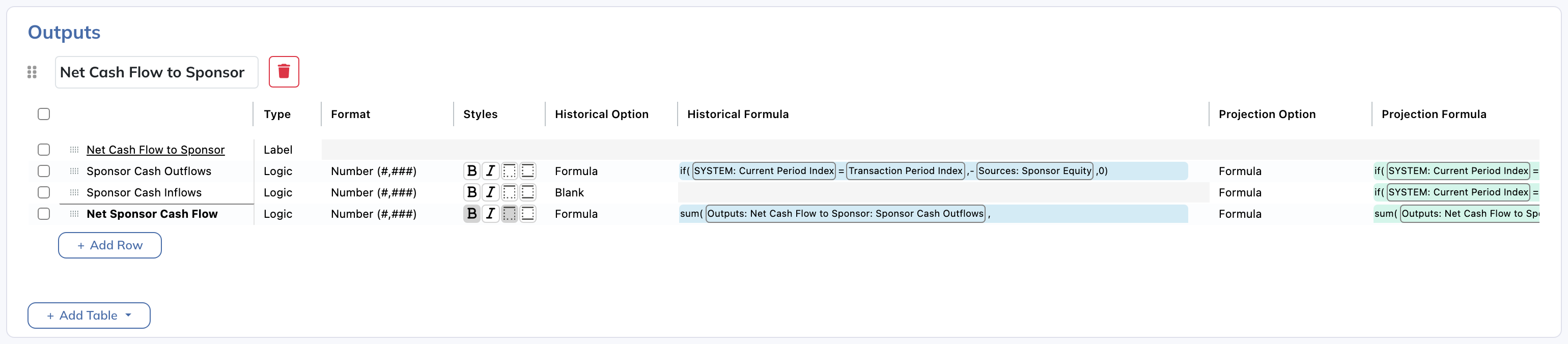
Create transaction Output Tables that combine model data with transaction logic (e.g. pro forma revenue, free cash flow, debt schedule).
Click "Add Table" to create a new Output Table - each appears as its own grid. Row types are Logic, Label, Spacer, and Header. An Output Table is a transaction-specific calculation grid, distinct from a model Collection Table.
Each Logic Row has three formulas:
- Historical - for past periods.
- Projection - for future periods.
- Aggregation - how periods roll up to the displayed totals.
Interim period - periods from the first projection period through the latest enabled transaction period on the set are shown with an amber/orange background. They are pre-transaction projection periods computed from the Projection Set's own forecast logic, and their inputs are editable like any other projection period. Periods after a transaction's period (green background) additionally reflect that transaction's adjustments.
Additional features:
- Hardcoded overrides let you set specific values for individual periods, including periods in the interim window.
- Use "Wrap Entry Date" / "Wrap Exit Date" in Outputs formulas to create formulas that only apply during specific periods.
- Copy/paste formulas between rows in the same Table - references adjust automatically.

Returns
Calculate investment return metrics. Click "Add Return Item" to add either an IRR or MOIC calculation.
- IRR - provide a cash flow formula linking to output rows. The system calculates the annualized IRR automatically (displayed as a percentage).
- MOIC (Multiple on Invested Capital) - provide "Cash Invested" and "Cash Returned" formulas. The system calculates the multiple (e.g. "2.5x").
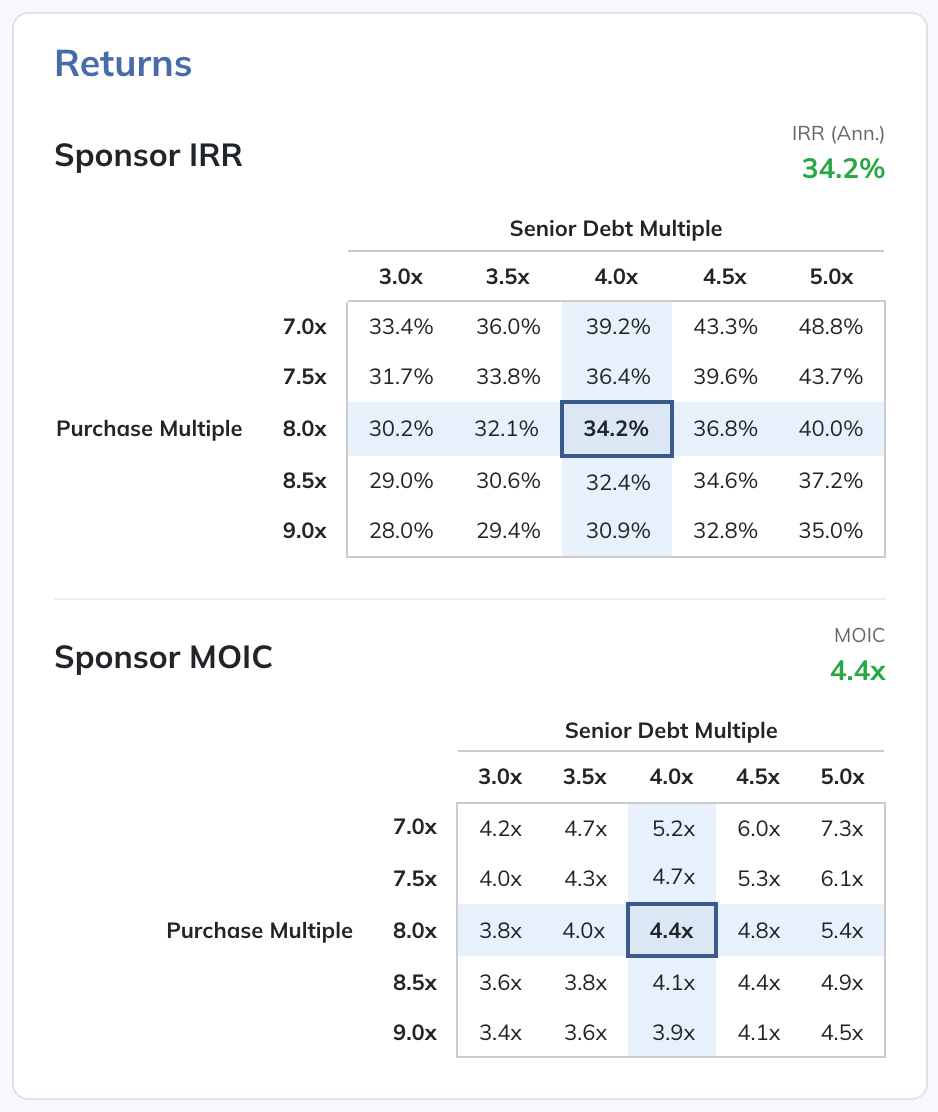
IRR and MOIC return items can also include an optional 5x5 sensitivity analysis so you can see how returns change under different assumptions.
Formula Editor
The formula editor opens when you click any formula cell across all transaction sections. The top area is a code editor with syntax highlighting, and referenced cells appear as styled inline widgets.
The available reference tabs depend on what you are editing:
- Entry & Exit Logic - link to entry or exit rows (scalar values).
- Model - link to forecast model rows at a specific period (with period selector) when that reference type is available for the formula you are editing.
- Sources & Uses - link to Sources & Uses rows (value, %, or multiple cells).
- BS Adjustments - link to balance sheet account values when editing balance sheet adjustment formulas.
- Outputs - link to Output Table rows (with period offset selector) when Output Table references are available.
Helper buttons: "Wrap Entry Date" and "Wrap Exit Date" are available when editing Outputs formulas, and "Wrap IFERROR" can be used to handle division-by-zero or similar errors.
Click "Add Link" to insert a reference, "Save Formula" to apply, and "Cancel" to discard.
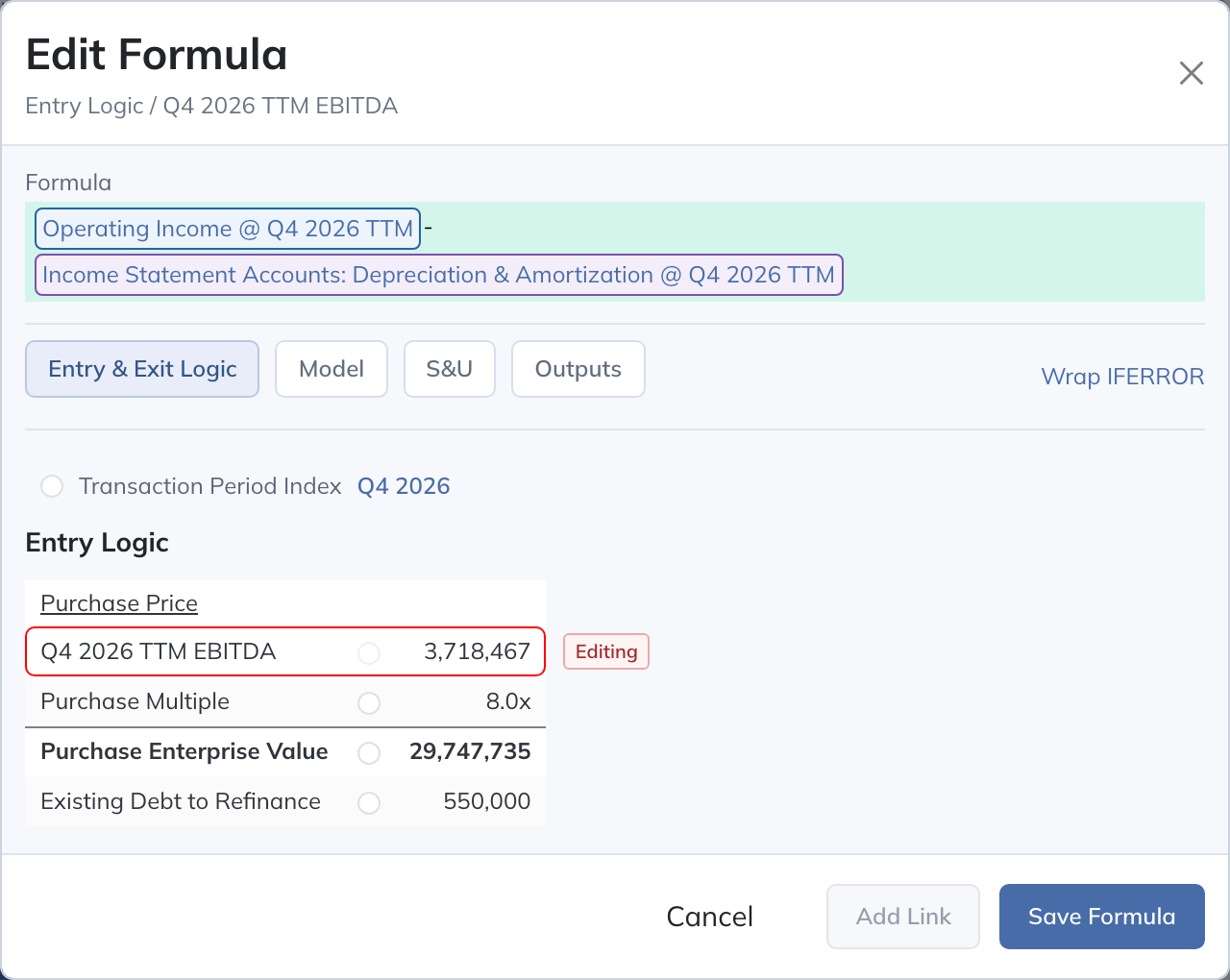
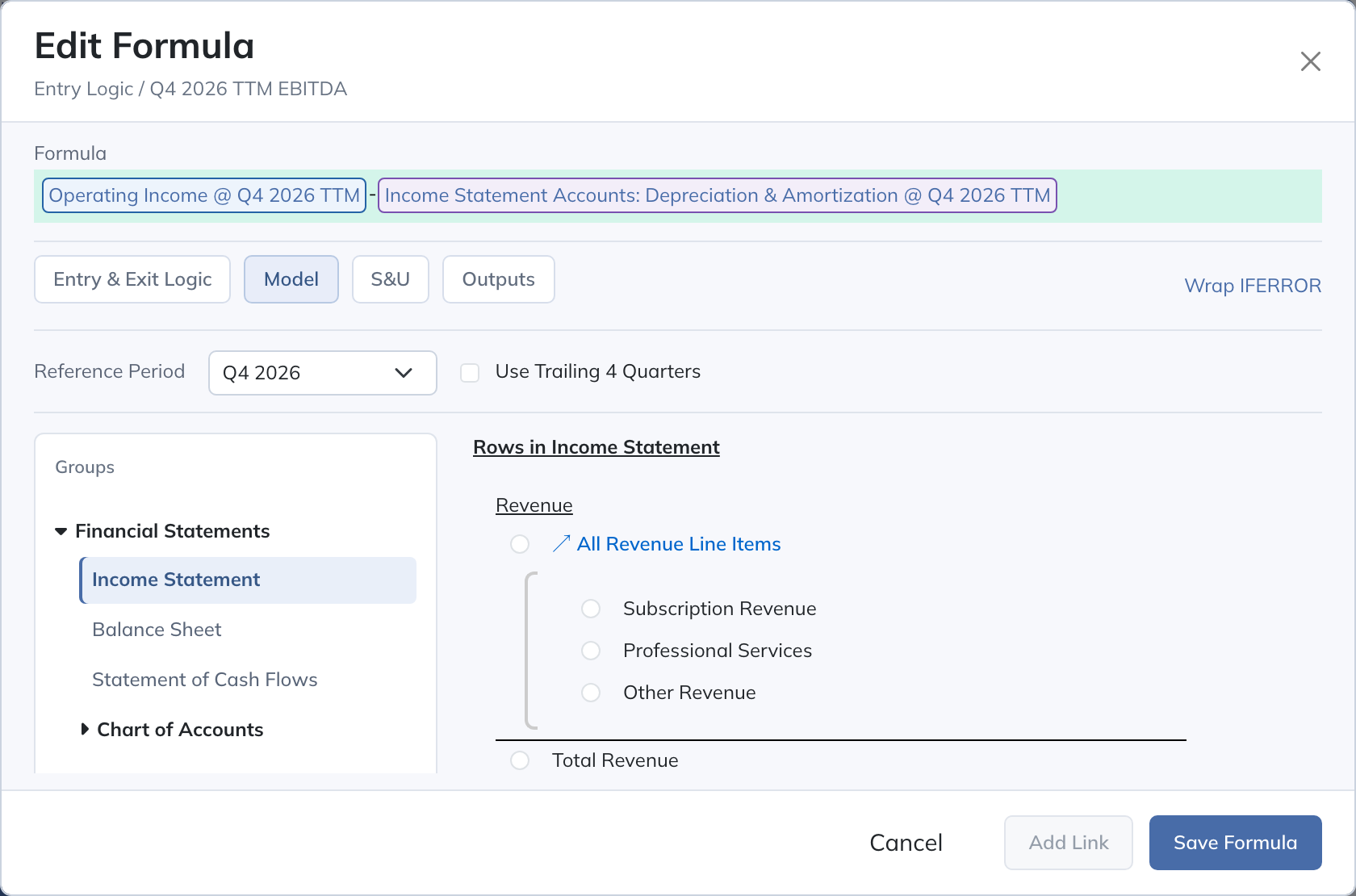
Transaction formulas use the selected host Projection Set and the applicable entity and period. Entry and funding calculations that reference the transaction-period Balance Sheet use balances before that transaction’s adjustments, so funding does not depend on its own pro forma result. Later model periods include the applied adjustments.
Cross-transaction references are available only where the picker offers an eligible transaction and source. Available sections depend on the formula context; an entry scalar, an Output time series row, and an adjustment formula do not have interchangeable references. Check the transaction, source, period, and any offset before adding a link.
Saving & Validation
Click "Save Transactions" to persist all changes. The button shows "Data Saved" when everything is saved.
The header also includes a Generate Excel Model button. If there are unsaved changes, it becomes "Save & Generate Excel Model" so you can export the latest version in one step.
A validation indicator (circular badge with "!") appears in the header when errors exist. Click it to open the Validation Errors modal - errors are grouped by section. Click any error to navigate directly to the problematic cell.
Common issues include circular references, references to deleted rows, and invalid period ranges.
History & Rollback
Click the clock icon in the header to open the History modal. It shows a table of all saves with timestamp, user, and change note.
Click "See Changes" to review the operations performed in any save. Click "Apply Rollback" to restore a previous version - this is applied as a new change, so you still need to save afterward.
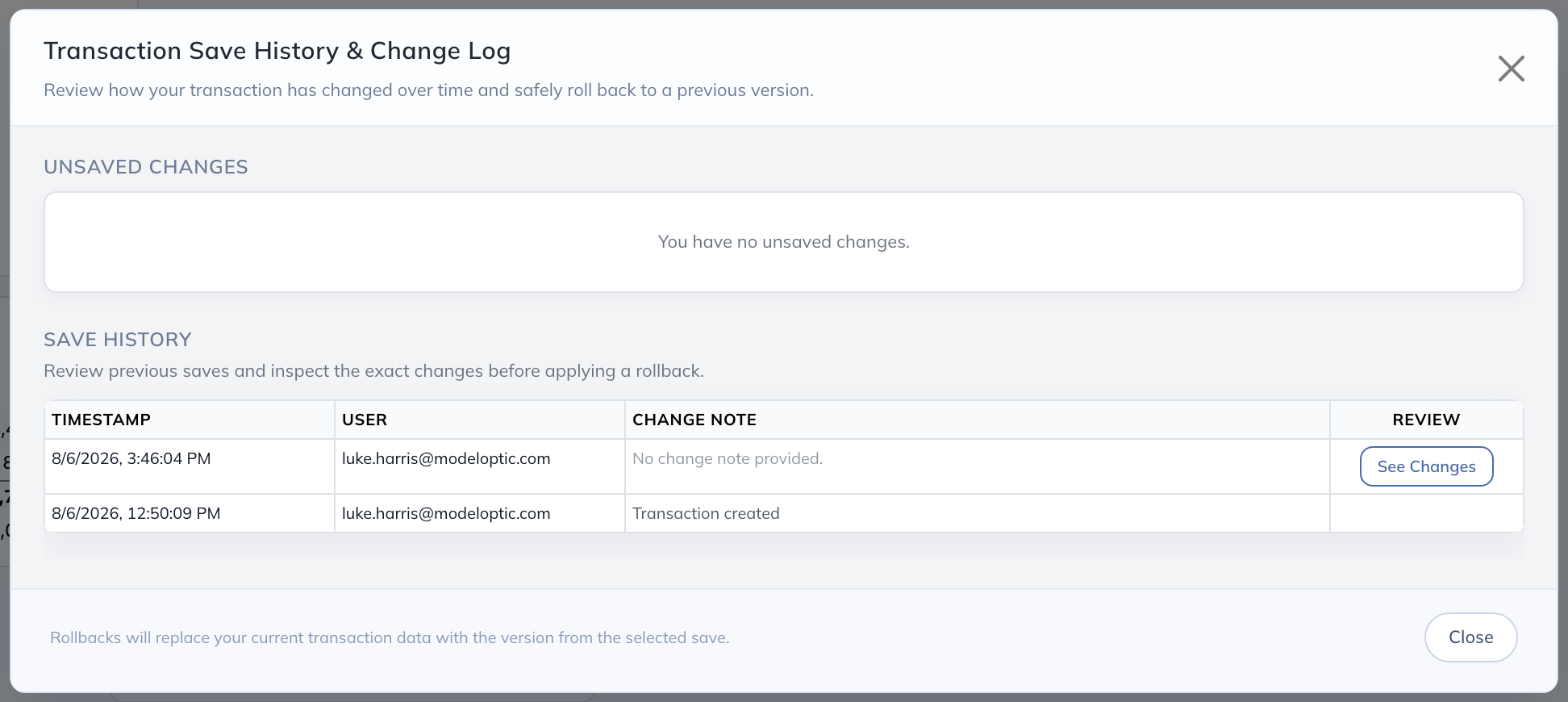
Rollback restores the selected transaction's definition while preserving its current Projection Set assignment, order, and disabled status. Save Transactions also saves pending edits to other transactions. See Save History & Rollback.
Multi-Entity Considerations
If you are operating in a multi-entity instance, there are several things to understand about how Corporate Transactions behave:
- Transactions are similar to Projection Sets in that each Transaction exists across all entities, and the logic for each Transaction is defined at the entity level.
- Any entity that contains a balance sheet and is not a consolidation entity can contain Transaction logic, and each will independently apply the balance sheet adjustments defined within it. This lets you forecast the primary logic of an acquisition in one entity but finance it from another, for example.
- There is an Acquisition Entity flag for "Reference" entity types on the Configuration page. When enabled, only projected values are populated in the entity (copied from the referenced entity) from the transaction period onward in Projection Sets that have an attached transaction. This lets you model consolidated financials that include acquired entities.