
Historical Data: Other Metrics
Additional Data Connections
If you'd like to bring in data that isn't included in the three financial statements, this can be done by creating an additional Data Connection. If you scroll to the bottom of the Historical Data tab, you'll see the "+ Add Connection" button that looks like this:
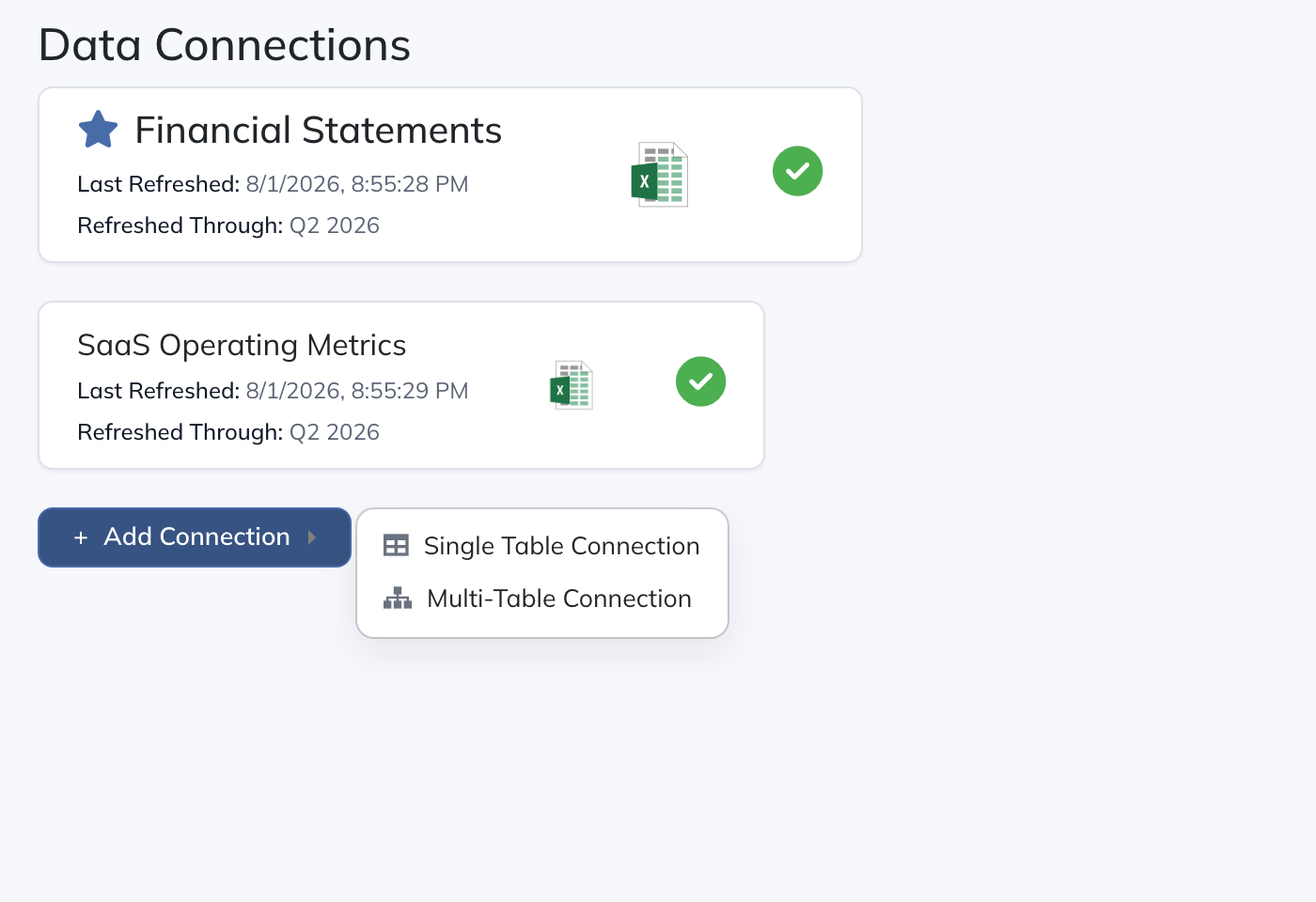
Choose the connection option you need to create a Data Connection, then configure its target and source.
Connection Targets
Create the target rows or Collection Table before setting up the connection. If you are building your first model, start with Logic Rows, Views & Collection Tables, then configure their global scope and historical options. Return here when the targets are ready.
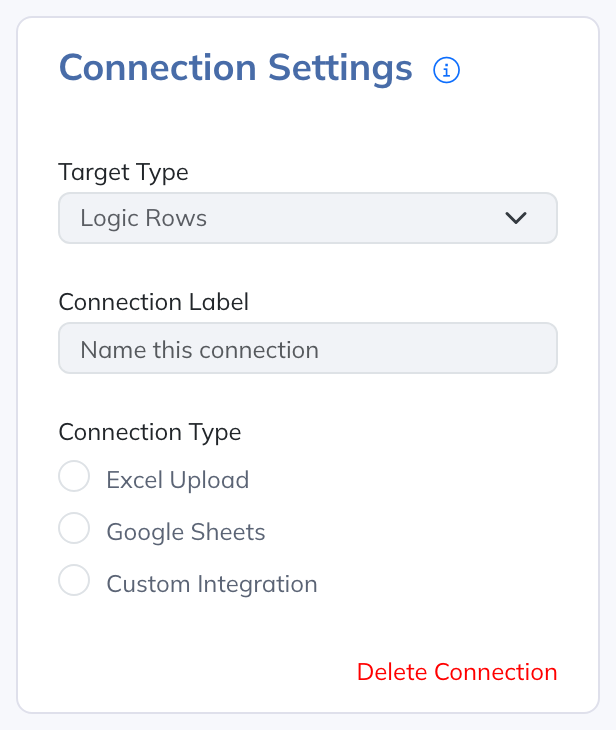
In Connection Settings, choose Target Type. For Logic Rows, enter a Connection Label and map source lines to individual rows after importing. For Collection Table, select Target Global Table. The table-specific options below apply only to Collection Table targets.
A data connection can load values into either individual Logic Rows or a Collection Table:
- Logic Rows: Map the data directly onto the Logic Rows that hold the corresponding lines. This is the simplest option when you're bringing in a handful of metrics that already exist as lines in your model. Only rows that can receive external data are offered as targets: the row must be global and its Historical Option must be set to External Data — see global rows.
- Collection Table: Push data into a Standard Table (and any One-to-One Collection Tables that reference it), as described under Single vs Multi-Table Connections below. Use this when the data belongs to a set of similar items.
Sub-Table rows can't be mapping targets, since they pull their contents from another Table rather than holding values of their own. The mirror and reference-another-connection options described below apply to table-backed connections; they aren't used when mapping directly to Logic Rows.
Single vs Multi-Table Connections
For a Collection Table target, select an eligible global Standard Table. A single-table connection loads that list’s values. A multi-table connection also loads eligible One-to-One Collection Tables whose parent is that Standard Table.
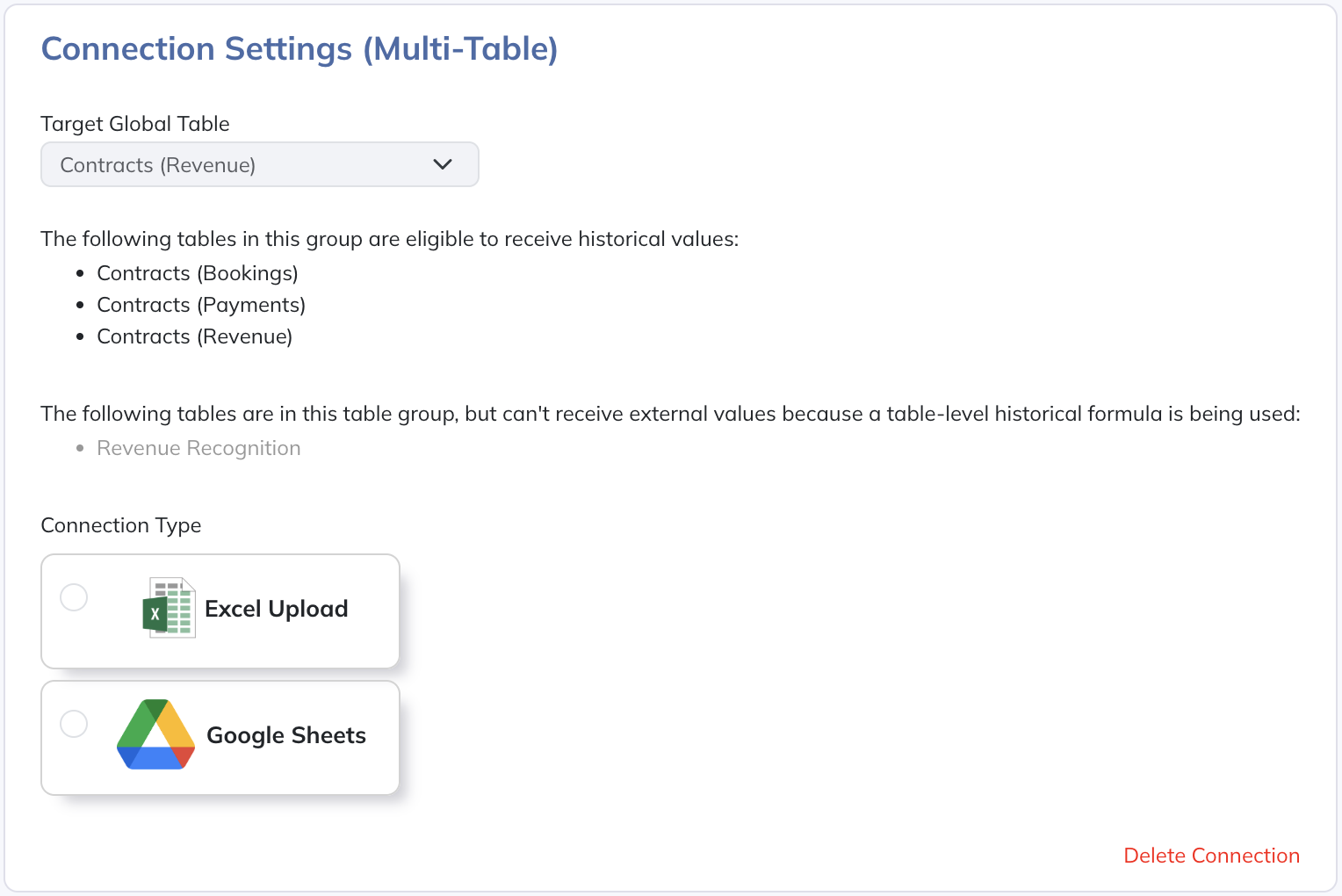
A related table must include time series, must not use a table-level historical formula, and must have at least one row whose Historical Option is External Data. Choose from the targets offered by the connection; Analysis and Multi-Entity Combination Collection Tables derive values from other tables and are not direct upload targets.
Multi-table connections use mirrored templates: each eligible table receives its own sheet. Single-table connections can use a mirrored template or a separate mapping. These table-backed workflows are distinct from mapping a few individual Logic Rows.
Standard vs Mirrored Connection
When setting up a single-table Data Connection, if you choose either the Excel Upload or Google Sheets connection type, you have two options for how the data structure is managed:
Standard (Non-Mirrored) Connection: With a standard connection, you define the row labels in your source file (Excel or Google Sheets), and then map those rows to existing rows in your Target Global Table. This gives you flexibility to map multiple source rows to a single target row, or to use different naming conventions in your source file versus your Modeloptic Table.
Mirrored Connection: When you select the "Mirror Target Global Table's Lines" option (available for Excel and Google Sheets connections), the connected file will automatically be populated with the same row structure as your Target Global Table. This means you don't need a separate mapping step - you simply enter values into the Excel file or Google Sheet and they flow directly into the corresponding rows in your Table. This option is ideal when you want a streamlined data entry process and don't need the flexibility of custom mappings.
Note that multi-table connections only support the Mirrored Connection type.
Excel Upload
Select Excel Upload as the source. For a Logic Rows target, or a Collection Table target without mirroring, configure the Excel Import options shown here:
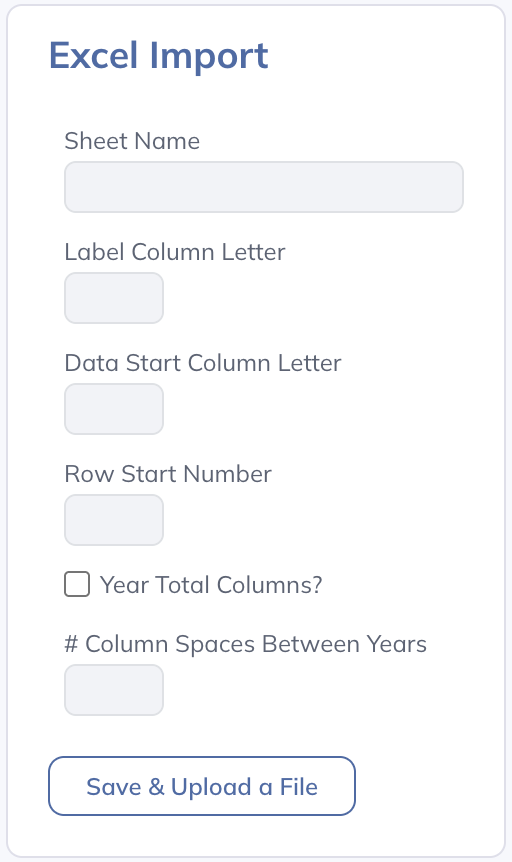
Set the sheet, label column, data columns, and starting row to match your file. Provide values at the company’s Period Resolution, then use Save & Upload a File. In Data Mappings, assign each source line to an eligible Logic Row or a row in the selected Collection Table. Save the connection and review validation.
For a Collection Table target, select "Mirror Target Global Table's Lines" to use a template with the table’s row structure. Logic Rows targets use explicit mappings and do not offer this option:
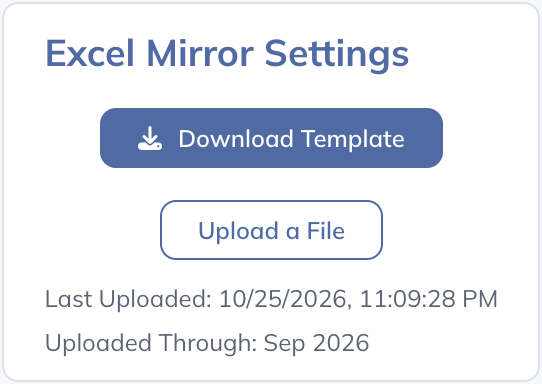
The "Download Template" button will allow you to download a template file that you can use to populate your historical values. Once you've done so, you can upload it to Modeloptic using the "Upload a File" button.
If you're using a single-table connection, you'll just have one data tab in the template file. If you're using a multi-table connection, you'll have one data tab for each eligible related Table.
Google Sheets
If you'd like to load in data from a Google Sheet, select the "Google Sheets" option. This will also open a Google Sheet Settings menu off to the right of the Connection Settings menu and will look like this:
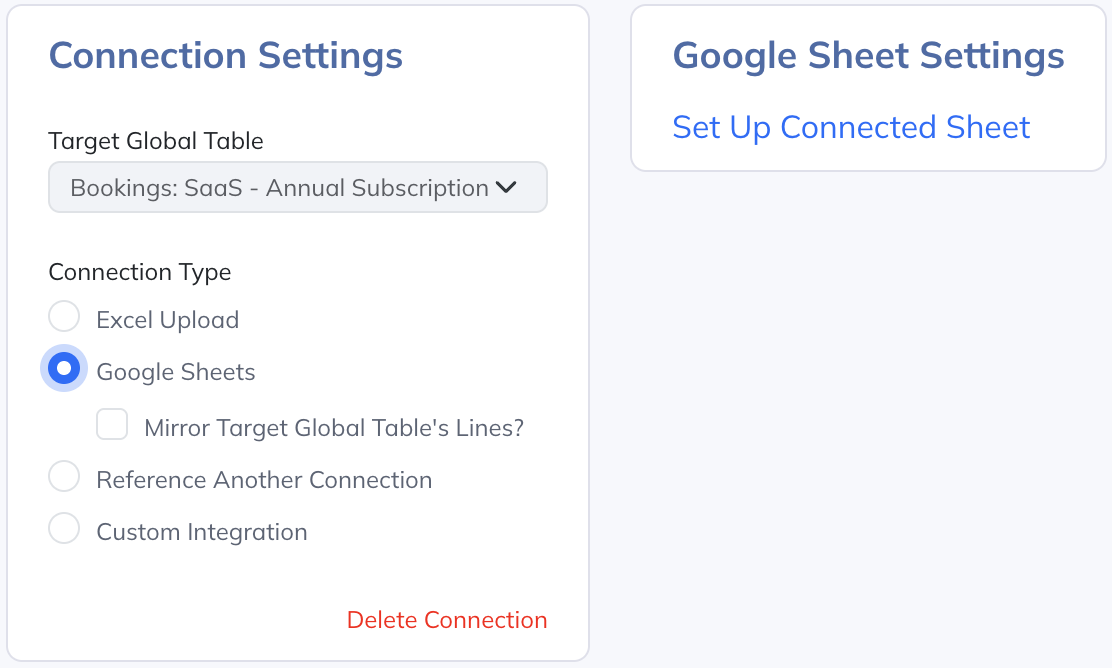
For a Collection Table target, you can select Mirror Target Global Table’s Lines to create a sheet that follows the table’s row structure. Multi-table connections use one mirrored sheet per eligible related table.
For a Logic Rows target, or a non-mirrored Collection Table target, click Set Up Connected Sheet to create a sheet whose source lines you map explicitly.
After selecting either option, your Google Sheet Settings Menu will look like this:
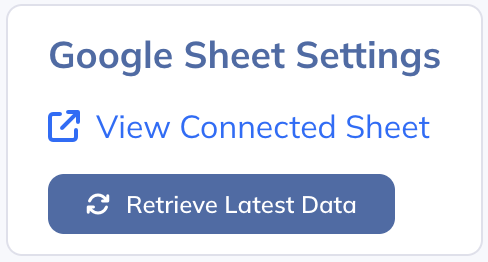
Click View Connected Sheet to open the source file. In a non-mirrored sheet, enter labels in column B and values under the period headers. Then click Retrieve Latest Data in Modeloptic and map the source lines to eligible Logic Rows or rows in the selected Collection Table. Save the connection and review validation.
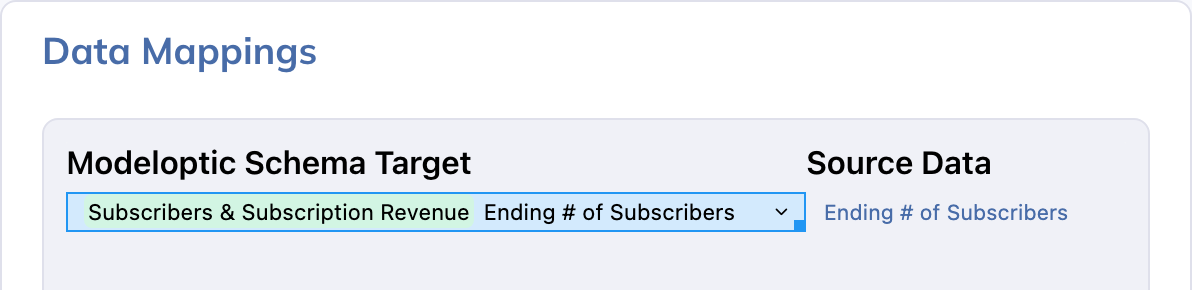
If you're using a multi-table connection, you'll see one tab in your Google Sheet for each eligible related Table.
Reference Another Connection
This source option is available for Collection Table targets. Logic Rows targets do not offer Reference Another Connection.
If you'd like to load in data that's applicable to multiple Tables in a single file but don't want to use a multi-table connection type, the Reference Another Connection data connection type is useful. You can then simply load in a large block of data into a single Data Connection, and then create as many additional Data Connections with the "Reference Another Connection" option set that references that connection and only maps the pieces of the data relevant to the Target Global Table for each.
To set up this Data Connection, select the "Reference Another Connection" option and then select the Connection you'd like to reference inside the "Target Data Connection" dropdown:
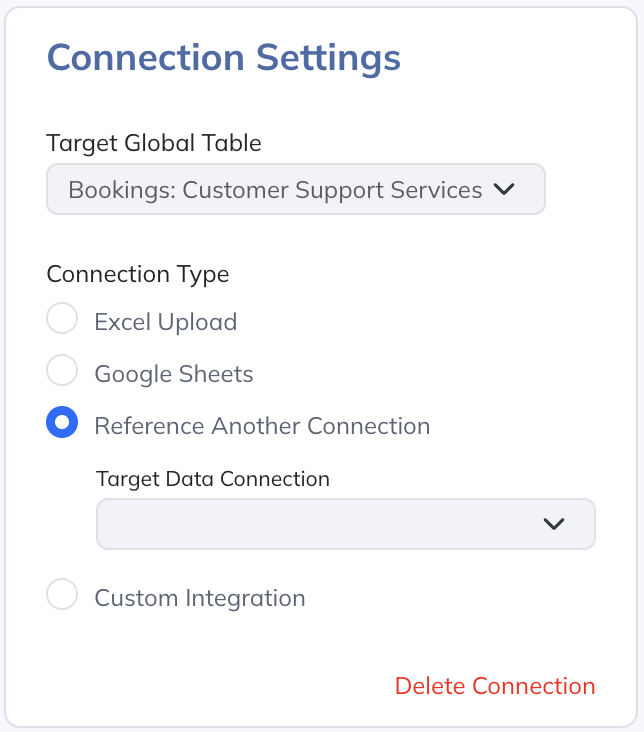
Once the Target Global Table and Target Data Connection dropdowns are selected, the Data Mappings menu will appear and you'll be able to map the lines from the Target Data Connection to the Target Global Table that you selected. Any Data Connection with this option set pulls its values from the parent Data Connection; saving the parent pushes the latest values through to each referencing connection.
Custom Integration
If you'd like to set up a Custom Integration with an ERP System or from some other data source that we don't currently have an integration with, there's a possibility that we could support your use case. Please reach out to a Modeloptic team member for support with this process as it will require additional configuration from the Modeloptic Engineering Team.
History & Rollback
Select a connection and click its clock button, Connection History. Apply Rollback & Save restores and saves that connection immediately. Eligible mapped historical values are regenerated using current model definitions, and model recalculation follows. Wait for recalculation and review any reported validation errors. See Restoring a Saved Version for the illustrated workflow.
Rollback uses the selected entry's source snapshot, or the most recent available snapshot at or before it. If neither exists, current source values are retained. Live connection credentials are preserved; rollback does not re-fetch an external system or file. A later refresh or upload replaces the restored inputs through the normal workflow.
Connections that reference the restored source receive its source values, and their mapped targets are regenerated. Mirrored connections follow their existing synchronization settings. Unsaved edits to other connections remain pending.