
Forecasting Fundamentals
Overview
Modeloptic enables you to forecast either at a very high level with simple over-arching assumptions, or a very low level using as detailed of custom logic as you'd like. Forecasting in Modeloptic is done primarily on the Model tab.
Once you've made changes to your model, hitting the save button in the top right will lock in the changes made. If you attempt to navigate away from the page you are working in without saving, a warning will appear that will prompt you to save in order to ensure no data is lost.
Projection Sets
To review edits or restore a saved model version, see Save History & Rollback. Model history belongs to the selected Projection Set and entity.
All projections in Modeloptic are scoped to a given "Projection Set". You can think of these as different versions of an Excel file, and different Projection Sets are most commonly used to show projections made at a given point in time or to show different cases/scenarios. Projection Sets are created and managed on the Projection Sets tab.
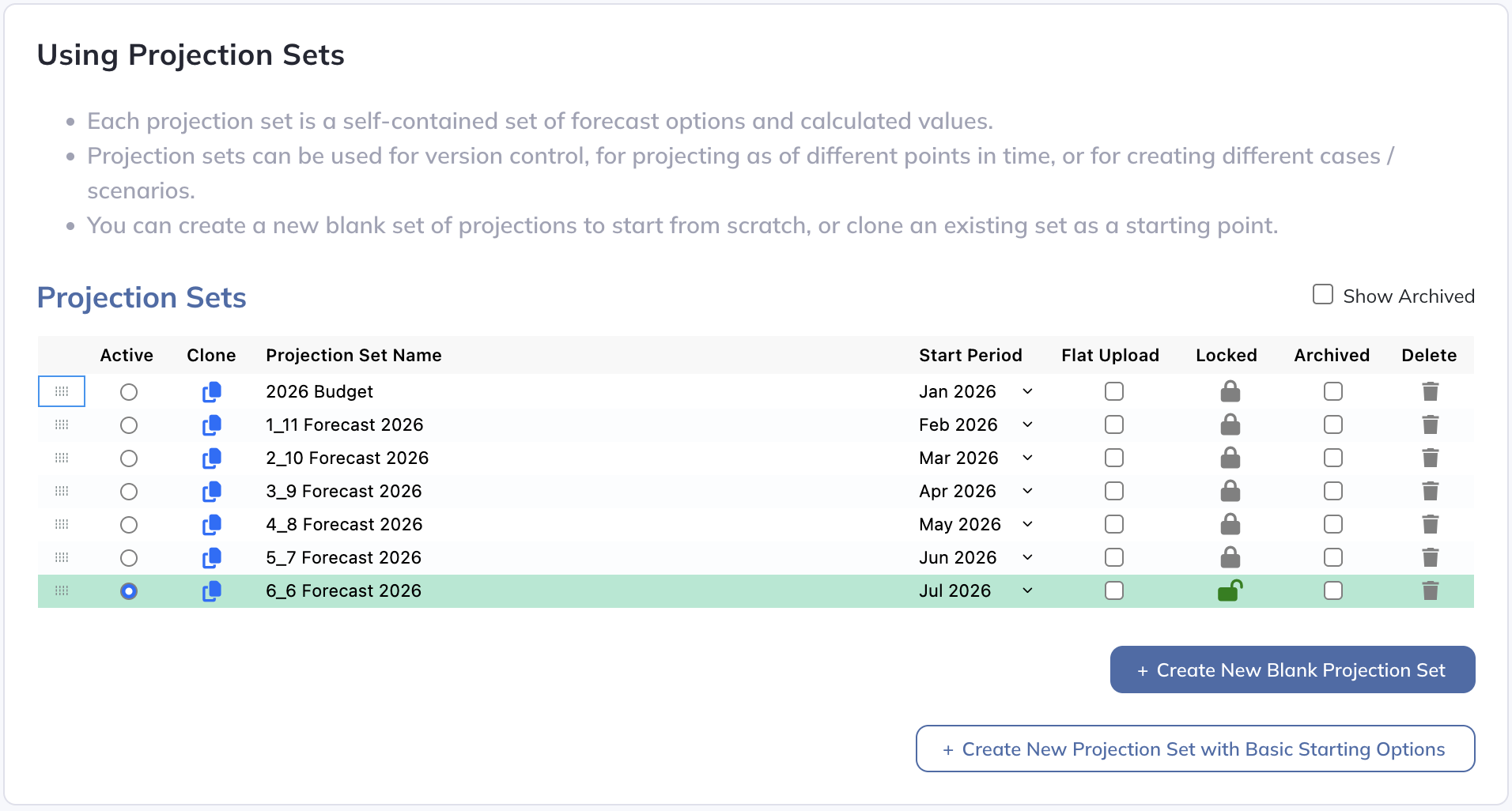
To create a new Projection Set, you can create a blank set, create a Projection Set with basic options set, or clone an existing set. After you've created your initial Projection Set, it is far more common to then continue cloning subsequent versions of it so you don't need to start from scratch every time.
Most companies will clone a new version of their projections once per month immediately after updating the system with the latest actuals, and retain the prior month's version so that it can be referenced later. This is especially important for the sake of running variance analysis.
You can name your Projection Sets whatever you'd like, but a common convention is to name them based on how many months of historical and projected data are included in the current year. For example, a Projection Set named "1_11 2026 Forecast" would have one month of actuals (Jan 2026) and 11 months of projections in 2026 (Feb to Dec 2026), with all years before 2026 obviously being actuals as well, and all years after 2026 being additional projected periods. Then the next month we would create the "2_10 2026 Forecast", and so on.
There are several options that can be set for each Projection Set:

- Active: Whichever Projection Set has this flag set is the one that will show first when any relevant page is loaded.
- Start Period: The first period of projections included in the Projection Set.
- Flat Upload: If you have a set of projections you've created outside of Modeloptic, you have the ability to load those numbers in as a "flat" Projection Set. You can do this using the instructions outlined in the Flat Forecast Upload section below.
- Locked: Locked Projection Sets cannot be edited. Projection Sets with a start period set in a historical period are automatically locked.
- Archived: Archived Projection Sets will not appear as selectable options on other relevant pages. It is good practice to archive old Projection Sets that are no longer actively being referenced as this will improve page load times.
If a Projection Set has its start period set to the first projected period, the lock icon will turn blue and allow you to interact with it:

Clicking on the blue lock icon will "unlock" the Projection Set, which will change the icon to a green "open" lock:
As mentioned above, Projection Sets with a start period set in a historical period are automatically locked, which is intended as a safeguard to prevent you from accidentally overwriting older Projection Sets. For current Projection Sets, locking them can also be useful to prevent accidental changes from being made to them.
Color Conventions
Modeloptic follows a simple color convention for forecast periods: blue numbers and cells indicate manual input variables (hardcodes) and BLACK numbers indicate references or formulas.
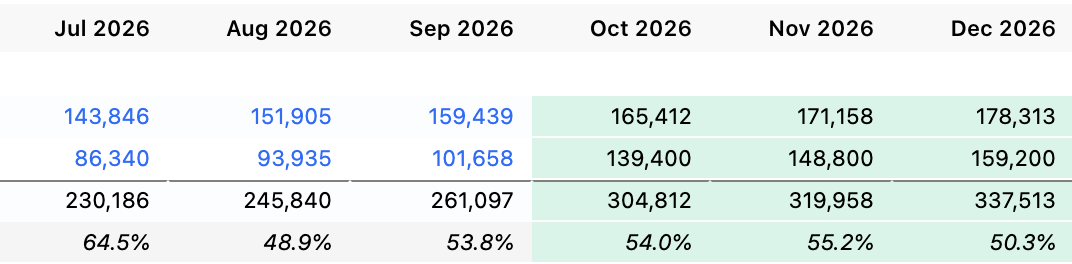
Periods with green backgrounds indicate forecast periods.
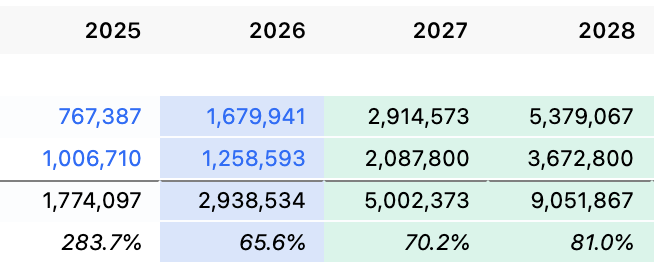
When in quarterly or annual views, periods with blue backgrounds indicate combination historical and forecast periods:
Transaction-Level Detail
If your Modeloptic account is connected to your accounting system, clicking on any of the blue historical numbers on any of the financial statements will open up the transaction-level detail for that account:
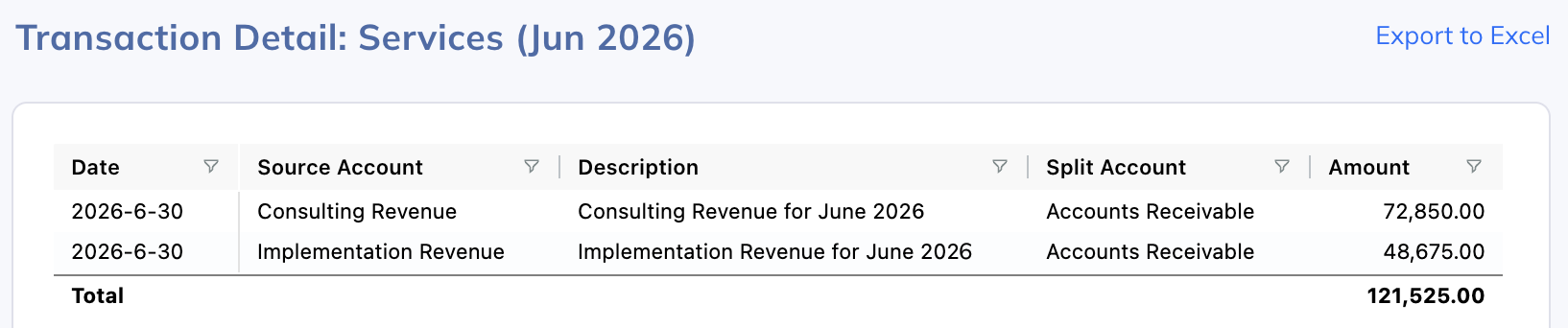
This is very useful when creating and updating your model as it allows you to see, for example, which expenses are mapped to a particular line so you can be sure you're forecasting that line correctly, as well as help you confirm that you're not missing any expenses in your forecast that you're regularly incurring.
This capability is also extremely helpful during the monthly review process, which is discussed in further detail in the Variance Analysis section of this guide.
Exporting to Excel
One of the most unique and powerful capabilities of Modeloptic is the ability to export a fully functional version of your model to Excel that looks and functions as if a highly skilled analyst had built it in Excel in the first place. To export your model, simply click the "Export to Excel" button in the top right:
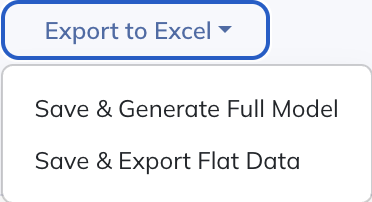
As you can see, you'll also have the ability to export a "flat" version as well that just includes the values.
Flat Forecast Upload
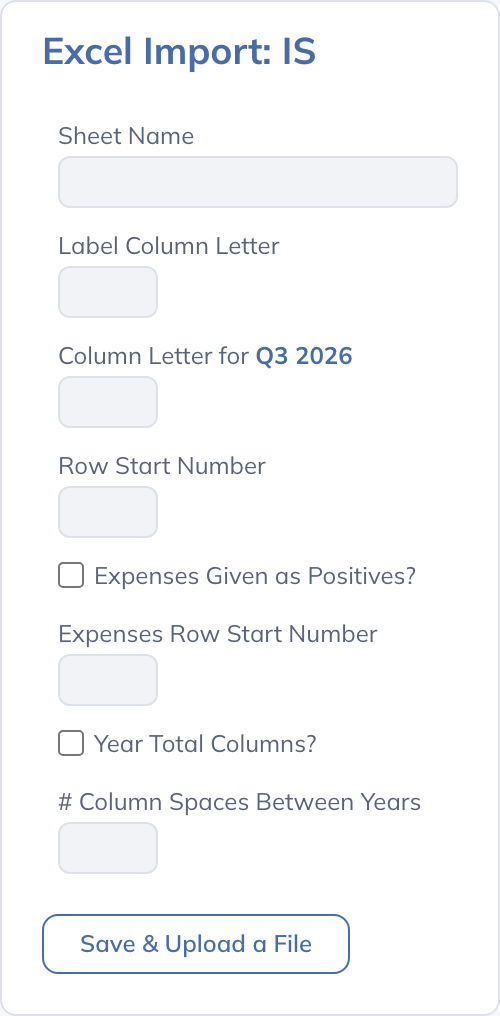
Use Flat Upload to retain a forecast built elsewhere as statement values for comparison and Variance Analysis. It imports values rather than reconstructing the source workbook’s model formulas.
- On Projection Sets, create or select a set, choose its first projected period, select Flat Upload, and save. Open Upload Flat Projected Values for that set.
- Configure each financial statement separately: identify its source sheet, label column, first data column, first data row, year-total columns, and spaces between years. For the Income Statement, set the expense-sign options to match your workbook.
- Align the first data column with the upload’s first projected period and provide columns at the company’s Period Resolution. Upload the relevant statement data, map source lines to Modeloptic accounts, and review validation before saving.
Flat uploads cannot be made to a consolidation entity. Upload to the eligible underlying entities. A flat-upload Projection Set cannot host Corporate Transactions.
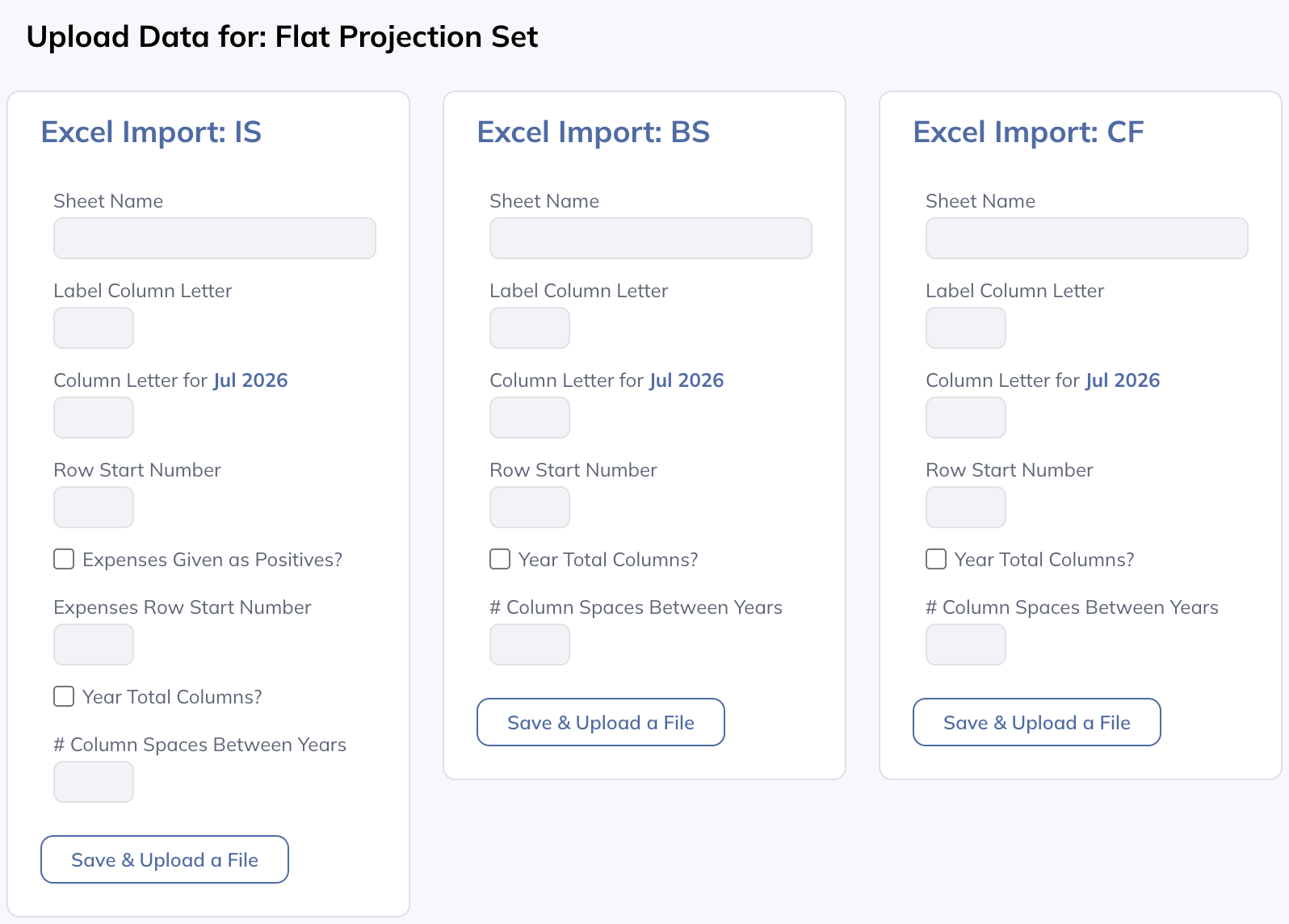
For actuals, use Historical Data imports. For labels and user-defined columns in a collection, use Collection Table Excel Import. Full-model Excel export is a separate output workflow.