Multi-Entity Features
Overview
Modeloptic has the capability to forecast and consolidate multiple entities. You can sub-divide your forecasts into as many entities as you'd like and Modeloptic will consolidate all of them for you automatically. Those entities can correspond either to separate companies/legal structures, or to classes/categories representing business units within a single company.

Entities can be configured to either just forecast the income statement, or to forecast all three financial statements.
You can also use the multi-entity structure to manage user access and permissions by providing each user the appropriate level of access to each entity. For example, the Sales & Marketing team can be restricted to only view and edit projections within the Sales & Marketing entity. This is described in more detail inside the User Access & Permissions section of this guide.
To navigate between different entities, click on the name of the current entity on the top left of the page to see all available options:
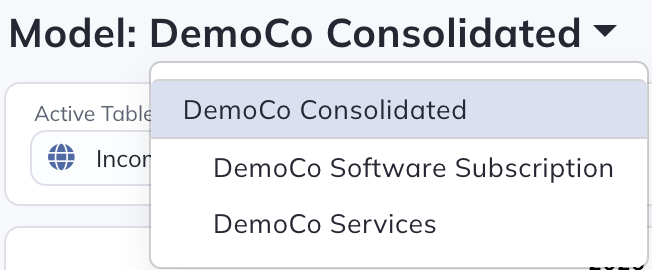
Each Standard entity operates the same way as a single entity would from a forecasting standpoint, then forecasted financial statements are consolidated and can be viewed from the parent level. Modeloptic is very flexible and supports a variety of entity structures.
Currency Conversion
Modeloptic supports the use of multiple currencies, either by converting to a common functional currency upon import, or by forecasting entirely in local currency in one entity and converting the financials to the functional currency in another entity. A common use case for this is if you have a business segment that operates in a different currency than the rest of your company, you'd like to forecast it as such, but also want to see a consolidated view in the functional currency.
To set up your Modeloptic instance to support this, please contact your account manager.
Universal Settings Across Entities
Several settings are universal across all of your entities within Modeloptic, including:
- Chart of Accounts: Since Modeloptic does automatic consolidation for you, you must have a consistent chart of accounts across all entities. You can define your chart of accounts on the Configuration tab.
- Periods: Since Modeloptic does automatic consolidation for you, all entities must have the same periods, including the "Latest Historical Period". These are set on the Configuration and Historical Data tabs.
- Projection Sets: You have one collection of Projection Sets for all entities. So, for example, a new Projection Set created in any entity will be visible across all of them.
Historical Data
If you have multiple entities in your instance of Modeloptic, you'll have some additional options to configure on the Historical Data tab. There will be an Org Structure Breakdown Dropdown included on the Historical Data tab that looks like this:
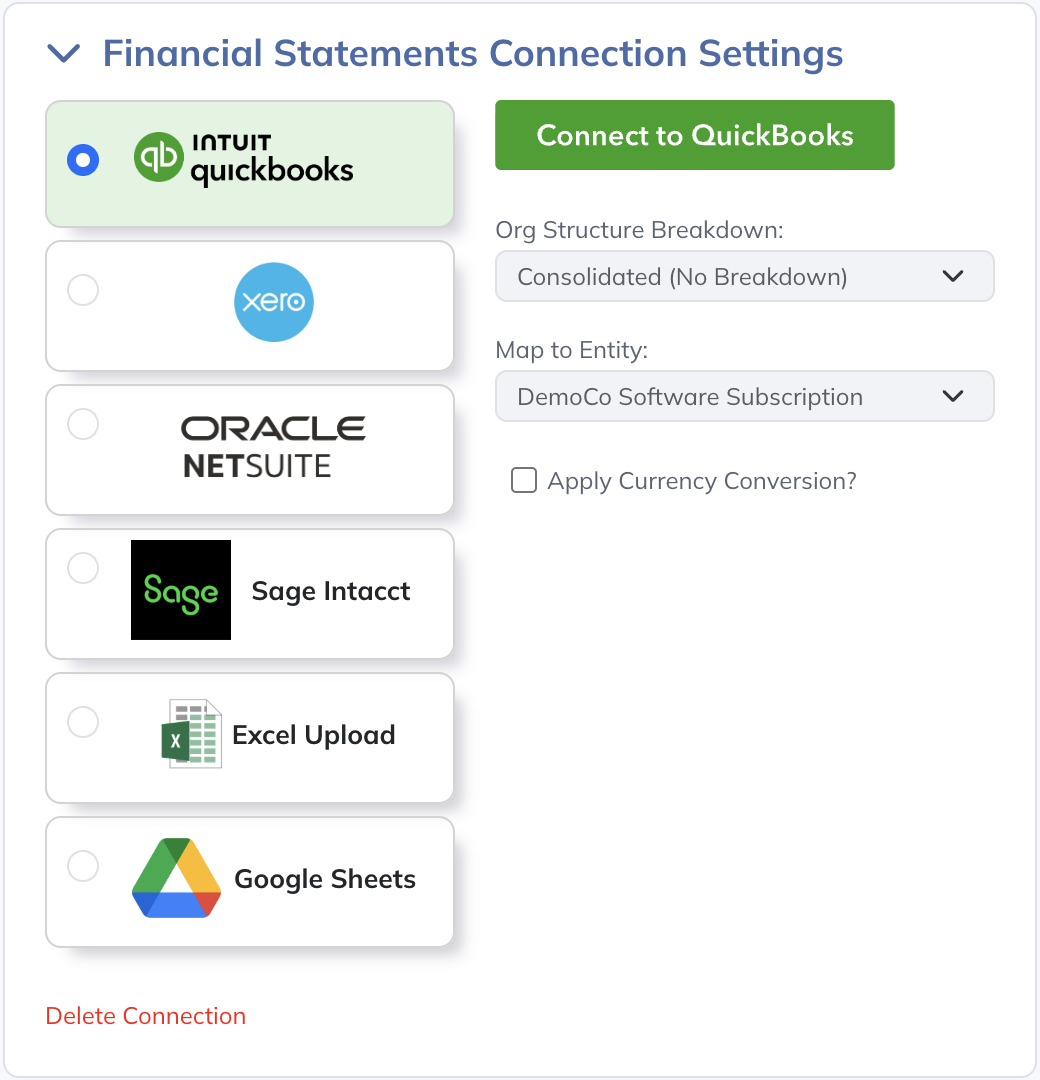
This will allow you to select the type of breakdown you'd like to use (QuickBooks Classes, NetSuite Departments or Locations, etc). If you select Consolidated inside the Org Structure Breakdown dropdown menu, you'll need to select what entity this specific data connection should link to using the Map to Entity Dropdown below the Org Structure Breakdown dropdown.
If you select a breakdown, you'll need to make a selection in the Entity Mapping Granularity dropdown that is created below the Org Structure Breakdown dropdown:
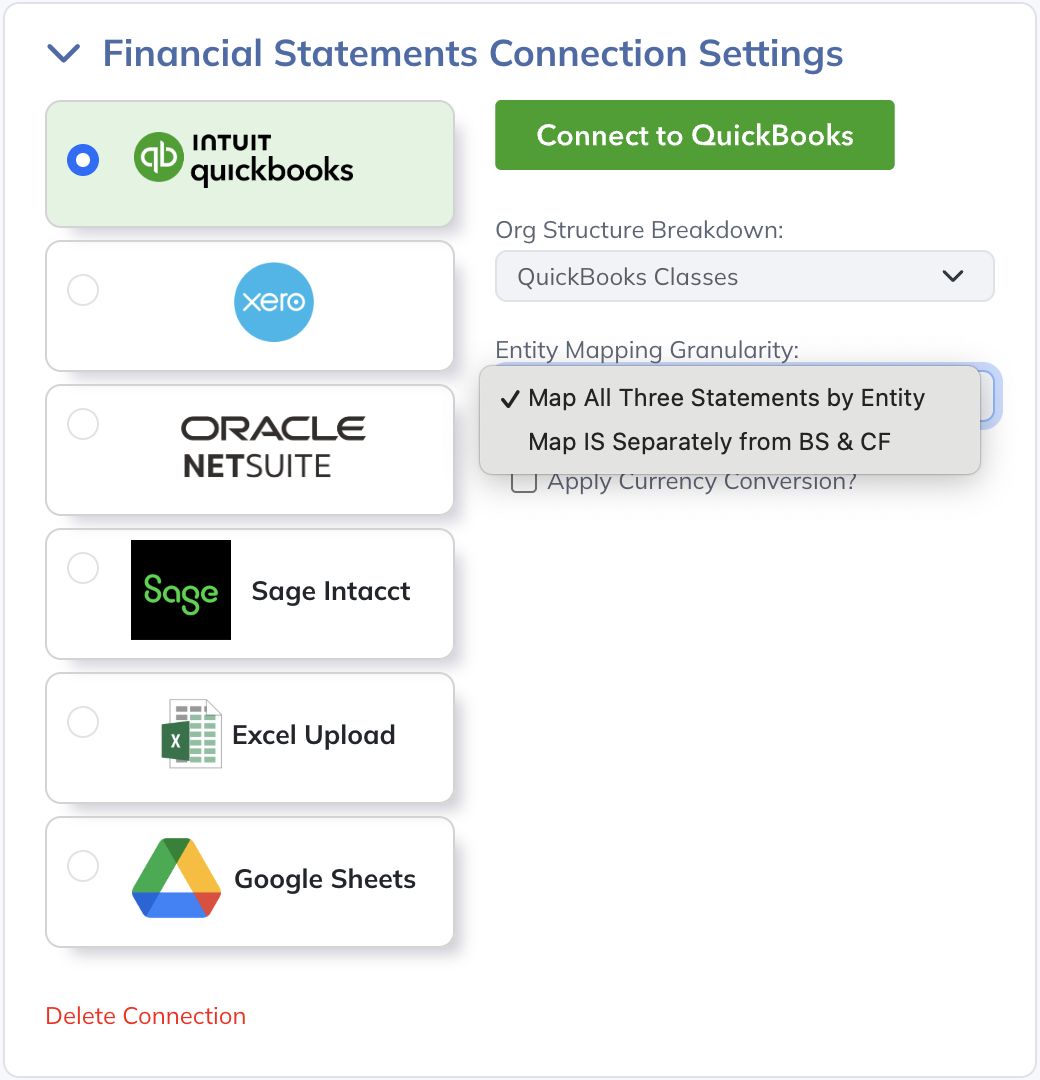
You can choose between mapping All Three Statements by Entity which will allow you to forecast all three financial statements at the child level, or mapping the Income Statement separately from the Balance Sheet and Statement of Cash Flows. If you choose the latter, the BS & CF Entity Mapping Dropdown will appear below the Entity Mapping Granularity Dropdown and will prompt you to select which entity you'd like to map all Balance Sheet & Statement of Cash Flows data to.
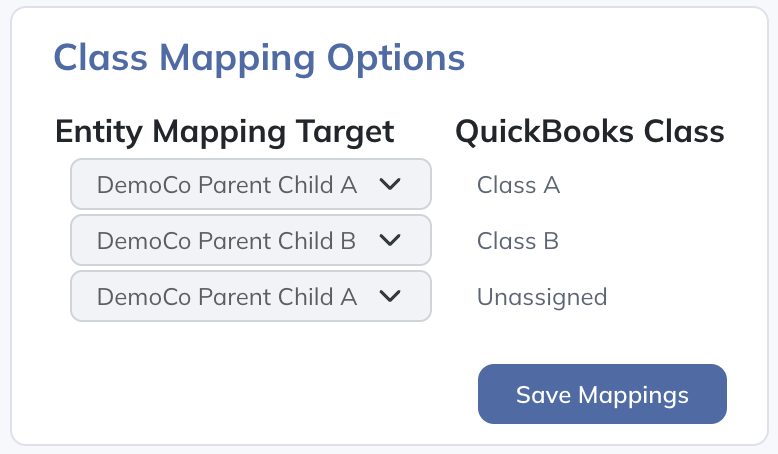
If you choose to break down your Org Structure into Classes, Locations, Departments, or another dimension from your accounting system you'll need to map the Classes, Locations, or Departments to their respective entity. This can be done in the Mapping Options menu that will be created after you select your Org Structure Breakdown:
Linking Across Entities
When creating links within a multi-entity structure, you'll see a drop-down option at the top left of the screen that enables you to scope to the entity of interest when creating the link: