
Modeloptic AI Agent
Overview & Making a Request
The Modeloptic AI Agent helps you build, edit, and understand your financial model. Its panel sits at the left edge of the Model, Transaction, DCF, Projection Sets, Historical Data, and Configuration pages. Click the blue strip at the left edge (Open AI panel), or press the backtick key (`) when no text field is focused, then describe what you want and attach any source files it should use.
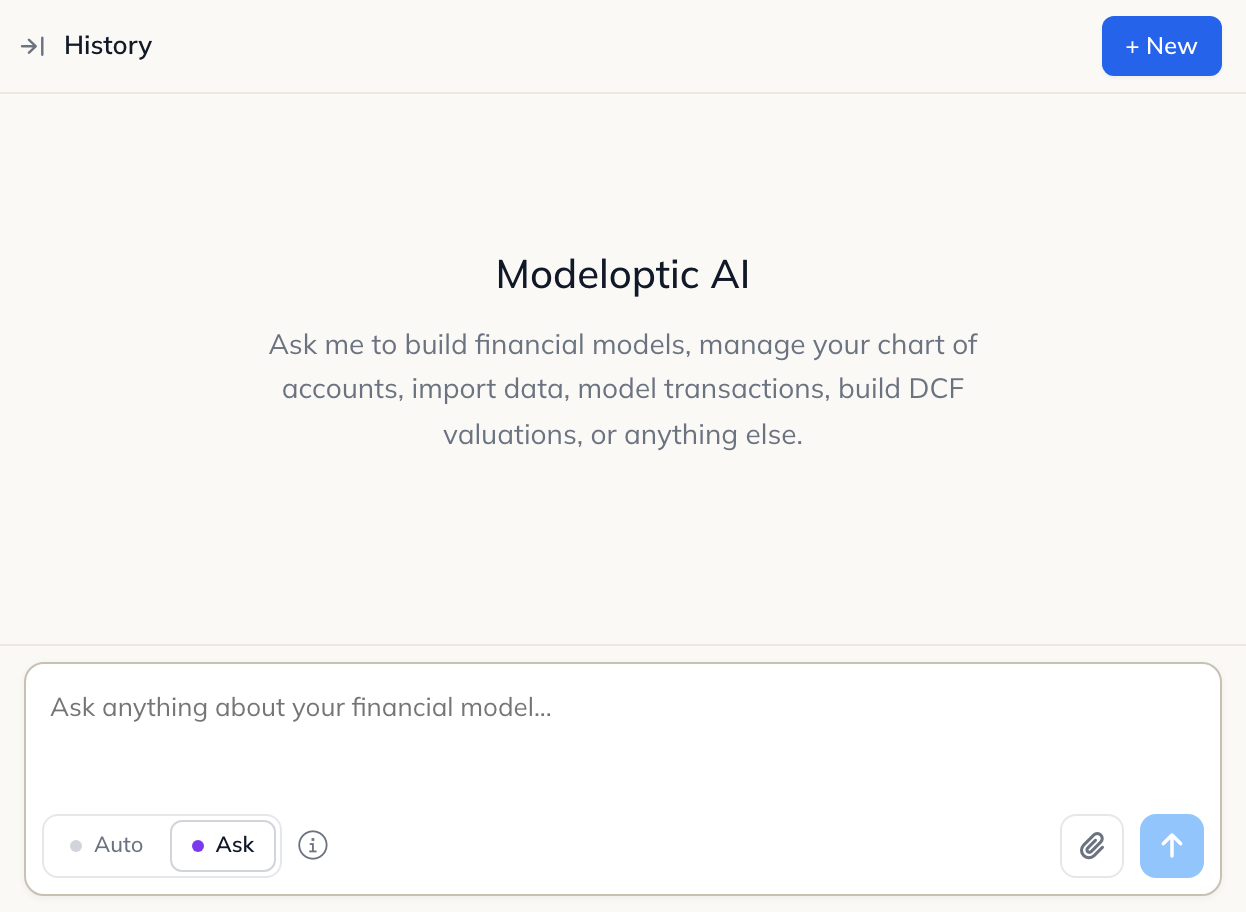
The Agent is available when AI is enabled for your company. Your access then follows your role and permissions: Admins and Super-Admins can use it in every area, Standard users can use it in the areas their permissions cover (Model View & Edit, Company Configuration, or Historical Data Connections), and View Only users cannot use it. Without access, the panel does not appear.
What You Can Ask
- Models and Projection Sets: build or edit Logic Rows, Views, Collection Tables, formulas, assumptions, forecast options, and scenarios.
- Configuration: manage your chart of accounts, fiscal year, entity settings, and other Configuration options.
- Historical data: configure historical periods, upload source files, and update data mappings.
- Corporate transactions: build an LBO, model an exit, or adjust transaction assumptions.
- DCF valuations: configure free cash flow calculations, discount and exit assumptions, and sensitivity analysis.
- Explanations and cleanup: explain a formula, investigate validation issues, or organize a model section.
Specify the Projection Set and entity you want to work on, the assumptions to use, and the result you want. For example:
In the Base Case Projection Set, build a subscription revenue forecast with Basic, Pro, and Enterprise tiers. Start with 500, 200, and 50 subscribers at $50, $150, and $500 per month. Assume 2% monthly subscriber churn and 20, 10, and 2 new subscribers per month. Show subscribers, revenue by tier, and total revenue together in a Revenue Build View.
Use the attachment control before sending your request. Supported file types include Excel (.xlsx and .xls), CSV, PDF, text, Word (.docx), and PNG/JPEG images. Tell the Agent which company, entity, and periods each file describes and what it should do with the contents.
Each message you send counts as one prompt toward your plan’s limit. Answers to the Agent’s questions and approvals do not count. See Usage & Billing.
How Changes Work: Proposed and Direct
The Agent makes two kinds of changes. Understanding when each takes effect helps you decide what to approve and what to review before applying.
| Change Type | What Happens | Your Control |
|---|---|---|
| Proposed changes | The Agent prepares edits for review. They remain unapplied in your company until you accept them. | Review the change log, use Preview Changes, request revisions, or click Apply Changes. |
| Direct changes | The action takes effect in your company when it runs. It does not wait for Apply Changes. | Ask mode requires approval before the action runs. Auto mode allows it to run without that approval. |
One request can involve both kinds of changes. For example, creating a Projection Set is a Direct change. The Agent can then propose formulas and assumptions for that Projection Set, which you review and apply separately.
Examples of Direct Changes
- Create or clone a Projection Set, or change its start period, locked state, or active selection.
- Create a Data Connection. Everything else the Agent does to a connection, such as uploading values, mapping accounts, or changing its settings, is proposed and waits for Apply Changes.
- Create Corporate Transactions or DCFs, reorder transactions, or enable or disable a transaction.
- Change the latest historical period.
- Create an entity in a multi-entity modeling instance, when you are an Admin or Super-Admin.
Completed Direct actions appear under Direct changes applied during this run. These actions remain in your company even if you do not apply the proposal.
Modes: Ask and Auto
Ask and Auto control one thing: whether the Agent asks before it runs a Direct action, a change that takes effect right away, such as creating a Projection Set.
Ask is not a question-only mode. In both modes the Agent can prepare changes to your model, and none of them reach your company until you click Apply Changes.
- Ask: the Agent pauses for your approval before running Direct actions. Ask is the initial mode.
- Auto: the Agent can run Direct actions without asking you to approve each one.
Select the mode in the message input area, or use Shift + Tab to toggle between modes. Your selection is saved for your user in this company. The mode can’t be changed while a run is active.
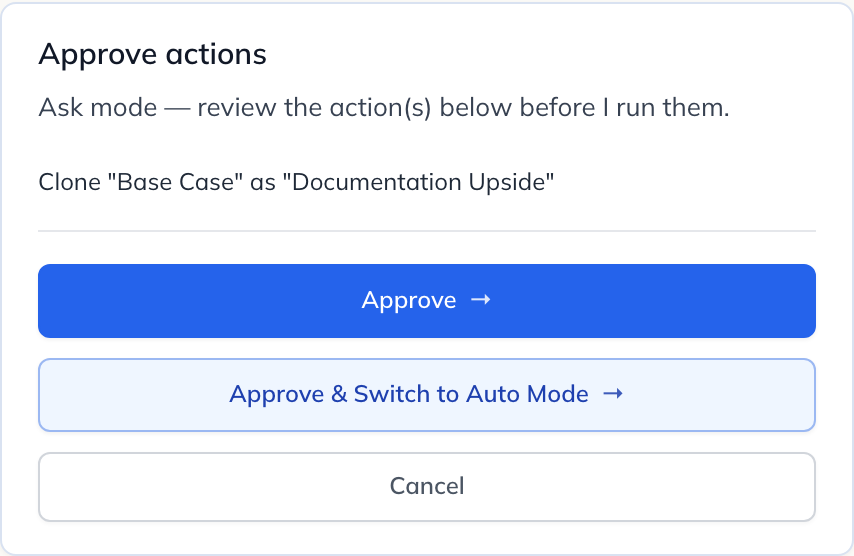
In Ask mode, an Approve actions card lists the Direct actions the Agent wants to run and names the Projection Set or transaction each one affects. Choose Approve to run them, Cancel to leave the listed actions unrun while the Agent continues without them, or Approve & Switch to Auto Mode to approve them and allow subsequent Direct actions without another approval. Switching also saves Auto as your mode preference.
While the Agent Is Working
The conversation shows the Agent’s progress. In either mode, it may ask a follow-up question when it needs more information. Answer the question or use the offered skip control to continue.
While a run is pending, the input area becomes a compact status bar. Use its square Stop button to request that the run stop. The current operation may finish before the run stops. Stopping does not reverse completed Direct changes or apply any pending proposal. Work the Agent finished before stopping can still be reviewed and applied.

Reviewing, Previewing & Applying Changes
When the Agent finishes a proposal, read its explanation and the change log above Apply Changes and Preview Changes. Each tab, such as Logic #1 or View #2, holds the changes from one step of the Agent’s work, numbered in the order the steps ran. When there is more than one tab, All Changes combines them. Check the relevant entity, Projection Set, transaction, or DCF before applying.

Explore the Preview
Click Preview Changes to open a separate, temporary copy of your company in a new browser tab, with the Agent’s proposed changes already applied. The copy is marked Preview beside the company name. Your company stays open in the original tab.
Explore the model, inspect formulas and outputs, and change assumptions to test how it behaves. You can edit the model in this copy; your edits affect only the preview. Saving inside the preview asks you to confirm and saves only to that copy, not to your company.
Manual edits you make in the preview are not included when you click Apply Changes. To keep those adjustments, ask the Agent to incorporate them into its proposal in the original conversation, or make them in your company’s model. Treat the preview as a temporary place to experiment.
Only you can open your preview, and it does not count toward your plan’s company limits. Each click on Preview Changes creates a new copy. Preview copies are deleted 30 days after they are created.
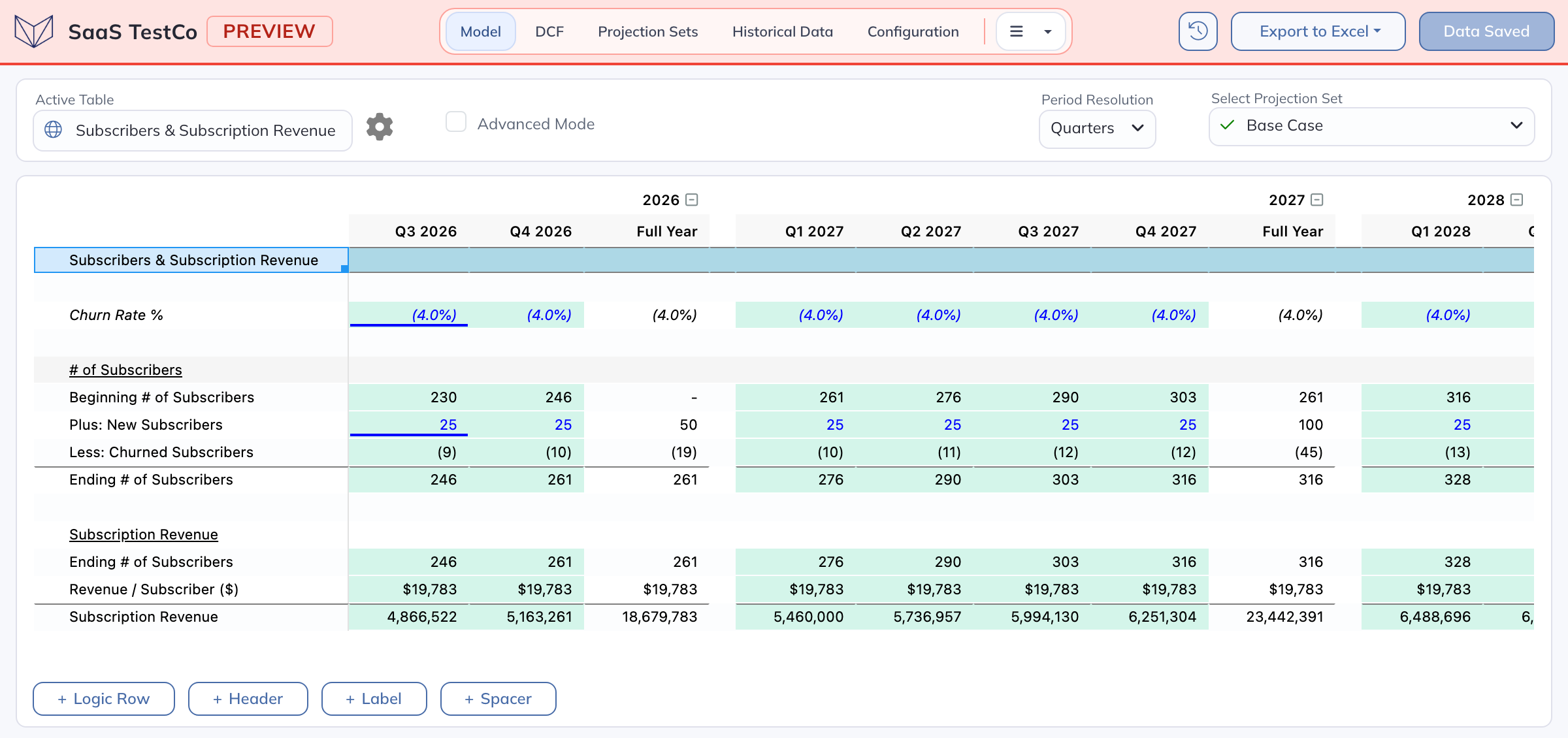
The preview below shows a proposed 4% quarterly churn assumption alongside the resulting subscriber and revenue forecasts.
Revise the Proposal
Continue the same conversation in the original tab and describe what you want changed. Unapplied proposals can be carried forward into the next response; the older message then reads “Included in a later message in this thread — apply that one.” Review, preview, and apply from the latest response rather than an older proposal.
Apply the Proposal
When you finish reviewing, return to the original browser tab and the same conversation. Click Apply Changes there to save the Agent’s proposed edits to your company. Apply Changes saves immediately, starts recalculation, and reloads the page.
- Save your own work first. Edits you have not saved when you click Apply Changes are lost when the page reloads.
- Apply Changes replaces each affected Projection Set, Configuration, transaction, or DCF with the Agent’s version. Saves made since you sent the request, by you or a colleague, are overwritten.
- Apply only the latest proposal in a conversation. An older proposal that was not carried forward can still be applied, and it overwrites newer work. After a page reload, an applied proposal shows Apply Changes again; applying it a second time repeats the overwrite.
If you decide not to apply the proposal, leave it unapplied and close the preview tab. Any completed Direct changes remain in your company.
Conversation History & Scoping
Open History in the Agent panel to return to a prior conversation. Two filters control what you see:
- Current Scope: conversations about what you are working on: the Projection Set and entity on Model, the Projection Set on Projection Sets, the selected transaction or DCF, the entity’s Configuration, or Historical Data.
- All History: conversations across every scope you have access to.
Conversations are shared with your company. Colleagues with access to the same area can read and continue them, and the header shows who started each one. Conversations about entities or areas you cannot access are hidden from you.
Before continuing a conversation, check which Projection Set, entity, transaction, or DCF it concerns. Archive moves a conversation to the Archived section of the sidebar for everyone in the company; Unarchive returns it to the active list.
An active conversation shows an Agent in progress indicator while the Agent is working, or a Waiting on your response indicator when it needs your input.
Rolling Back Changes
Rollback works area by area; there is no single undo for a whole proposal. For each area the proposal changed:
- Open that area’s Save History and find the save created when the proposal was applied. Its User is whoever clicked Apply Changes, and See Changes marks each AI change with a robot icon.
- Restore the entry directly below it, which holds the state before the proposal.
- Save with Save Projections, Save, Save Transactions, or Save DCFs. On Historical Data, Apply Rollback & Save saves immediately.
Later saves in that area stay in Save History, but their changes are removed from your model, and a rollback can replace unsaved edits, so read its confirmation. Changes the Agent made to global objects, such as global Views, global Collection Tables, and the shared settings of global Logic Rows, are recorded in Configuration history as a separate entry with no See Changes. Rolling Configuration back to the entry before it reverses them, and also restores everything else in Configuration to that point.
Rollback does not remove objects the Agent created through Direct changes. Manage newly created Projection Sets, connections, transactions, DCFs, or entities from their own pages. Adjust the latest historical period on Historical Data, and Projection Set settings on Projection Sets. Inspect dependencies before deleting a newly created object.