
Save History & Rollback
Overview
Use Save History to review edits before saving, see who saved changes and when, and restore an earlier saved version. It records changes made manually and changes applied by the AI Agent.
Every save records a snapshot of that area as it was right after the save. Two actions on each entry work differently:
- See Changes shows what that save changed.
- Apply Rollback restores the state right after that save. To undo a save, restore the entry directly below it.
A restored Model is unsaved until you click Save Projections. Historical Data is the exception: Apply Rollback & Save saves immediately. Later saves stay in Save History, so you can return to one of them, but their changes are no longer in your model.
Each area has its own history. A Model rollback doesn’t restore Configuration or imported actuals, so choose the history for the area you need:
| Area | Restored State | Save Step |
|---|---|---|
| Model | Selected Projection Set and entity’s model logic | Save Projections |
| Configuration | Shared definitions and supported company settings | Save |
| Historical Data | Selected connection and available source snapshot | Apply Rollback & Save |
| Transactions | Selected transaction’s definition | Save Transactions |
| DCFs | Selected DCF’s definition | Save DCFs |
Opening Save History
On Model, select the Projection Set you want to review and, in a multi-entity instance, the relevant entity. Click the clock-with-arrow button beside Export to Excel. Its tooltip is Model Save History.

You can also press h when you are not editing a field or working in a modal. Configuration, Historical Data, Transactions, and DCFs have their own clock buttons; select the relevant connection, transaction, or DCF before opening its history.
Reviewing Unsaved Changes
Unsaved Changes lists pending edits for the selected Projection Set. Action identifies the change; Detail describes the recorded setting or value. Save History, below it, lists versions already saved.
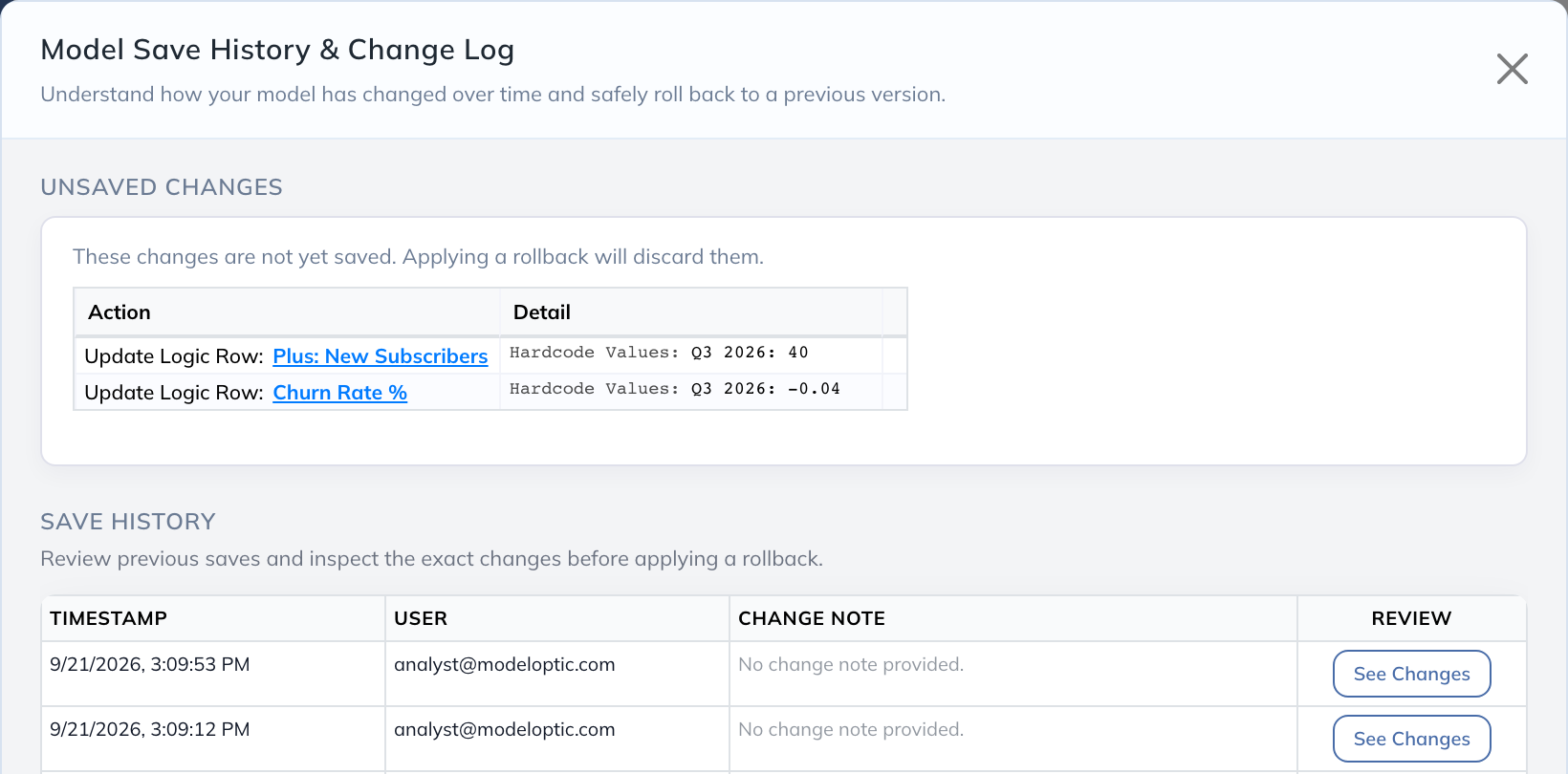
Linked item names let you return to the relevant row, View, or table in the current model. Some entries, such as deleted items, have no available destination. A change record may describe a formula change without showing the complete formula.
Click Close to continue editing, or return to Model and click Save Projections when ready. Closing history leaves your pending edits in place; it does not save or discard them.
Reviewing Saved Changes
Each entry is a complete snapshot of the area immediately after that save. Entries are listed newest first, and the list shows the 100 most recent saves. Older saves can’t be viewed or restored from Save History.
Find a save by its Timestamp and User. Change notes are written by Modeloptic, not typed by users; for example, a save made by applying an AI proposal can read “AI agent changes applied.” Saves without one show “No change note provided.” Click See Changes to inspect that save's operations. A robot icon marks each change made by the AI Agent.
The example below records a change to 30 new subscribers for Q3 2026, so this saved version contains the assumption of 30.
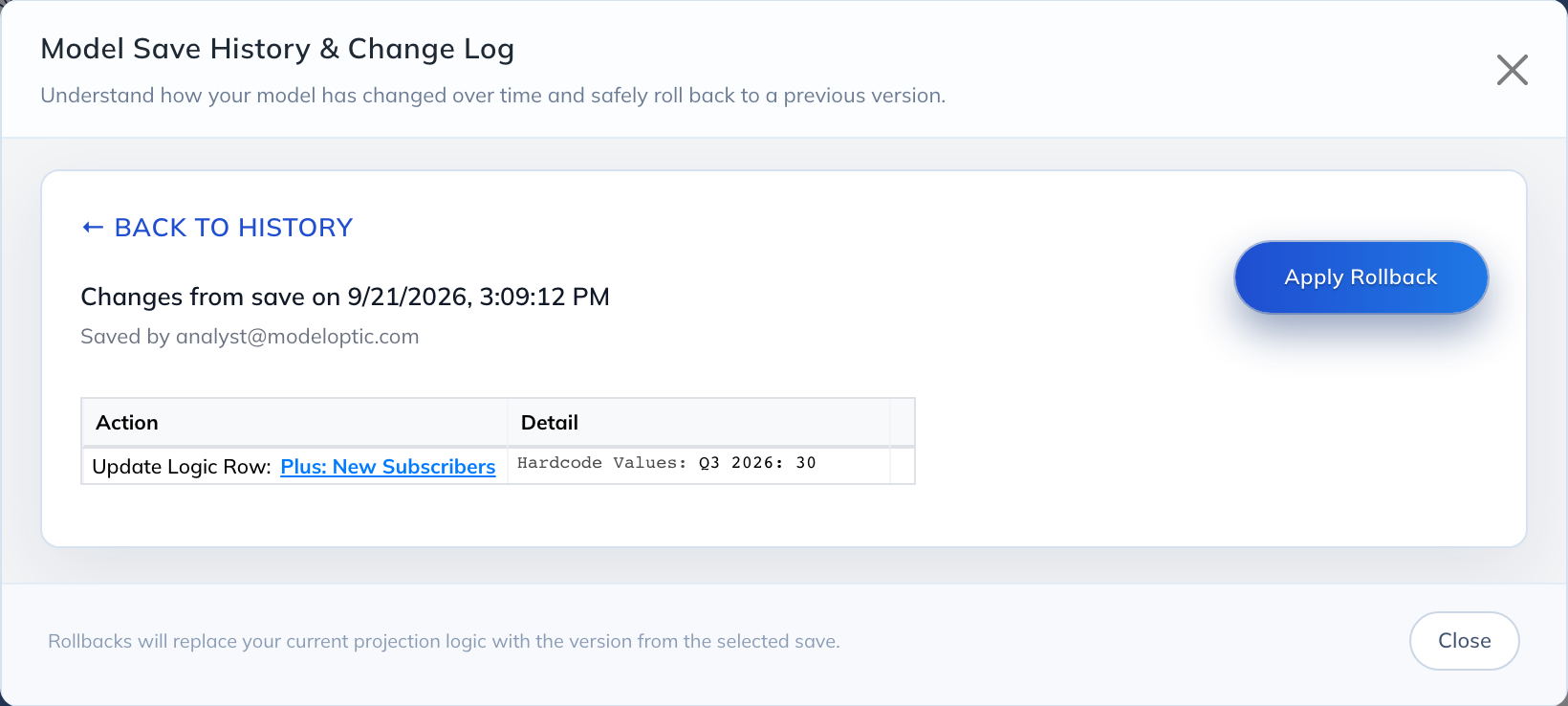
To undo a save, restore the entry directly below it. That entry holds the state just before the save you want to undo. Suppose you later change new subscribers to 35 and save again:
| Entry | See Changes Shows | Apply Rollback Restores |
|---|---|---|
| Newer save | New subscribers changed from 30 to 35 | 35 new subscribers |
| Earlier save, directly below it | New subscribers set to 30 | 30 new subscribers. Restore this entry to undo the change to 35. |
Viewing a save does not change your model. The list describes the operations recorded in that save, rather than a comparison with today's model. Use Back to history to return to the list. Rollback restores the selected saved state as a whole; individual operations cannot be selected for reversal.
Restoring a Saved Version
Rollback discards unsaved edits. To keep them recoverable, click Save Projections before you open history; they become an entry you can return to.
- Open Save History, find the save containing the state you want, and click See Changes. Apply Rollback is on this screen.
- Click Apply Rollback. If you have unsaved edits, confirm that they should be discarded.
- Review the restored model and any validation messages. The restoration is still unsaved.
- Click Save Projections. After the save succeeds, the restoration appears as another entry in Save History.
Later saves stay in Save History, but their changes are no longer in your model. You can restore any available save using the same steps.
Historical Data Saves Immediately
On Historical Data, select the connection you want to restore, then click its clock button, Connection History.

Inspect the desired save with See Changes, then click Apply Rollback & Save and confirm. There is no separate save step: this restores and saves the selected connection immediately, replacing any unsaved edits to that connection. It regenerates eligible historical values and starts model recalculation. Wait for recalculation and address any reported validation errors before using the results.
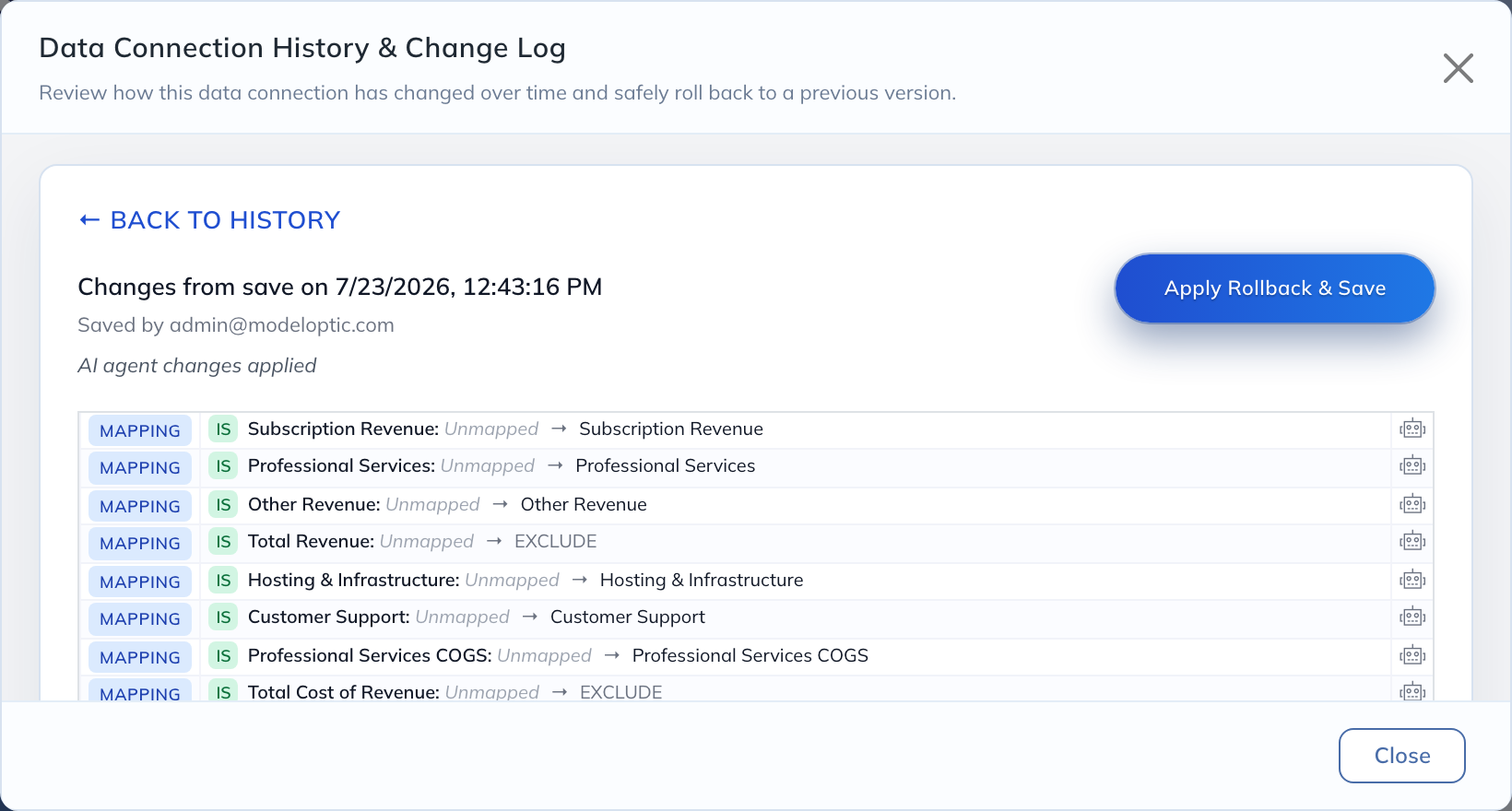
Available source snapshots determine which historical inputs can be restored. See connection snapshot limits.
What Each Rollback Restores
Each rollback restores only its own area; see the table in the Overview. Within an area, these keep their current values:
- Model: a rollback restores only what belongs to the selected Projection Set. Anything shared across Projection Sets keeps its current value, including global Logic Rows’ names, formats, and historical and aggregation settings, and global Views’ layouts.
- Configuration: changes can affect multiple Projection Sets. Entity structure stays unchanged.
- Transactions: a rollback keeps the transaction’s current Projection Set assignment, order, and disabled status.
Save Transactions and Save DCFs also save pending edits to other transactions or DCFs. Before rolling one back, review unsaved edits to the others, because the save step saves them too.
Locked Projection Sets cannot be rolled back: Apply Rollback is unavailable, with the tooltip “This projection set is locked.” Unlock the set on Projection Sets first. Projection Sets created by Flat Forecast Upload have no Model history. A set’s oldest entry, when present, holds the set as it was created; for a cloned set, that includes the logic copied from its source.
Rolling back requires Model View & Edit for Model, Transactions, and DCFs; Company Configuration for Configuration; and Historical Data Connections for Historical Data. View Only users cannot roll back. See User Access & Permissions.
For area-specific limits, see Configuration, Financials connections, and Other Metrics connections. AI conversation history and User Activity are separate logs; see Rolling Back AI Changes for changes spanning multiple areas.