
Company Selection Lobby
Overview
The Company Selection Lobby is where you manage your companies in Modeloptic. When you sign up or log in, this is where you land. It lists every company you've created or been invited to, and, depending on your access and subscription status, allows you to create, clone, promote to multi-entity, archive, restore, and reorder them.
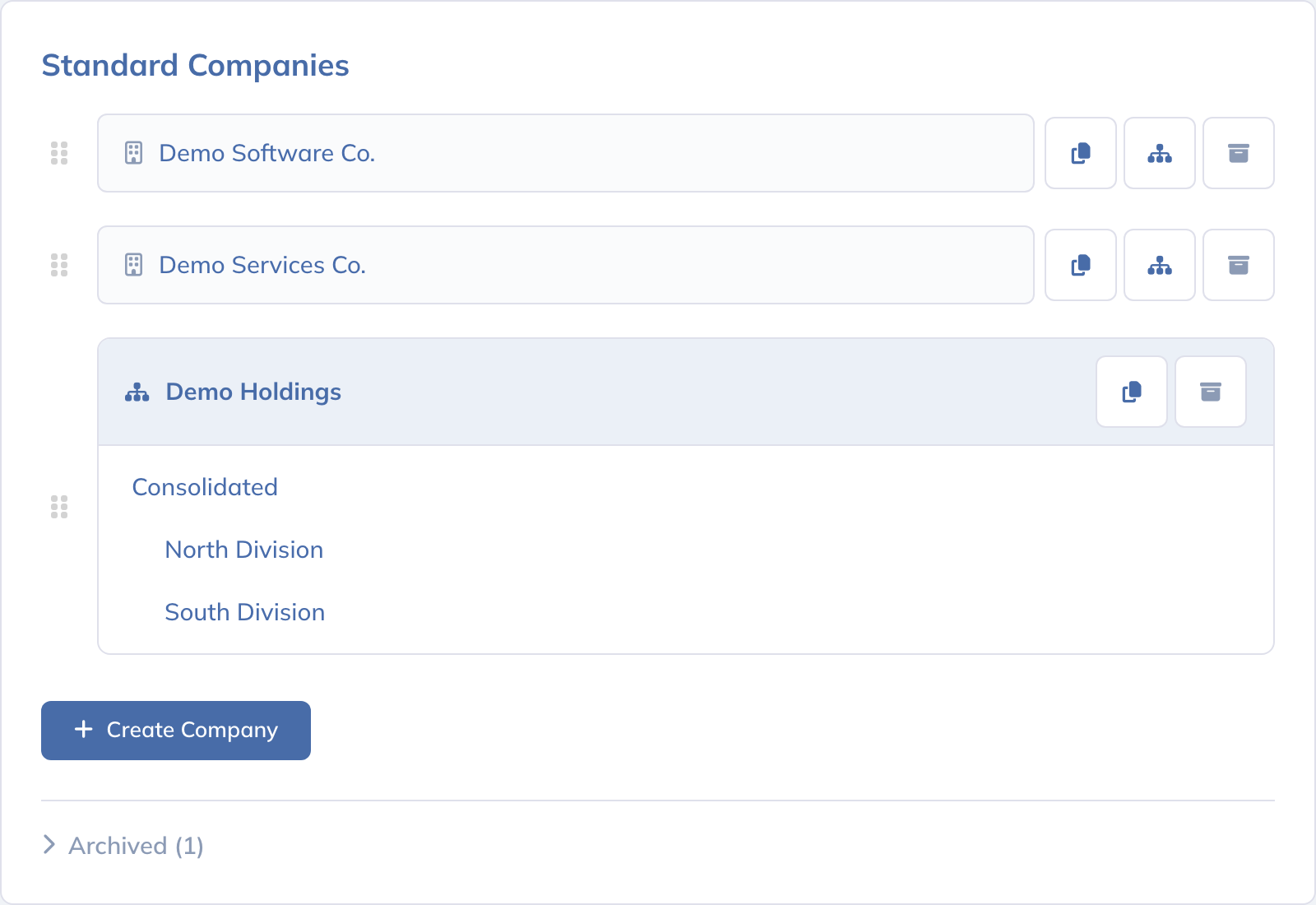
Adding a New Company
Select + Create Company to create a new company. You'll be prompted to give it a name, choose whether it should start as Single Entity or Multi-Entity, and choose the period resolution. New companies present their financial statements in whole US dollars; you can change the Currency and Display Units on the Configuration tab. Set Display Units before you load data or start modeling if you can: nothing already in a model is converted when that option changes later. Once you submit, Modeloptic creates the company and counts it as a company created during the current billing period. From there, you can configure it, load historical data, and start modeling.
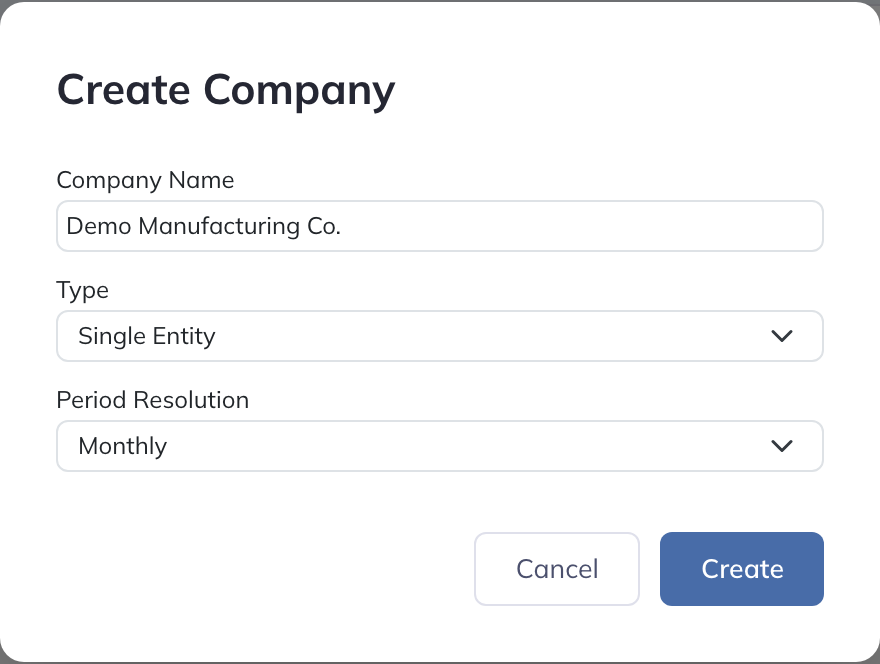
Cloning
Cloning copies an existing company and all of its current data into a new instance. If you have admin access to the company and an active subscription, select the Clone action for the company you want to copy. You'll be prompted to give the new company a name. After you confirm, the cloned company appears in the Company Selection Lobby and counts as another company created during the current billing period.
Common uses: keeping a template company that you clone for each new client engagement, preserving a version before a large restructure, or branching a what-if version off an active model.
Promoting to Multi-Entity
If you have a single-entity instance and want to show additional entity-level granularity within the instance, select the Promote to Multi-Entity action.
After promotion, you'll have a new multi-entity company whose first entity is your original company and whose parent is an empty consolidator entity ready to be configured. Promotion is only available when you have admin access to the single-entity company, your subscription is active, and you have remaining company-creation allowance for the current billing period. Once promoted, structural changes to the entity tree (adding, removing, renaming, reordering entities) happen inside the new company's Configuration tab - see Multi-Entity Configuration.
Promotion creates a new company and consumes company-creation allowance, just as creating or cloning a company does.
Archiving & Restoring
Archiving preserves a company’s data and removes it from the active list. Use Archive for a company you administer, then confirm. Archived companies appear in the Archived section; use Unarchive to restore one.
The allowance counts companies created during the billing period, not how many are currently active. Archiving does not return creation capacity, and restoring an existing company does not create a new company.

Reordering
Drag companies into the order that works best for you. The order is personal to your account and persists across sessions, so a long list can be organized as desired.
Usage & Billing
Open User Account → Usage & Billing to see your plan, companies created, prompt usage, limits, and billing-period renewal. The company allowance counts new companies created during the billing period, including clones and promotions. Archiving a company does not return that allowance.
If a firm adds a new email address to its Firm Plan, activate the account from the emailed link. If you already have a Modeloptic account, the firm sends you an invitation instead: review it from the Lobby and accept or decline it. Nothing changes until you accept. Companies you created before joining stay yours and are not shared with the firm; companies you create, clone or promote as a member belong to the firm, and if you leave, its administrators take them over. Firm members share the firm’s company and prompt allowances, subject to its seat limit. Firm membership and company access are separate: a company admin still grants access to each company through User Management. Usage & Billing shows the applicable shared allowance; company permissions determine what you can view or edit.